| 7982 |
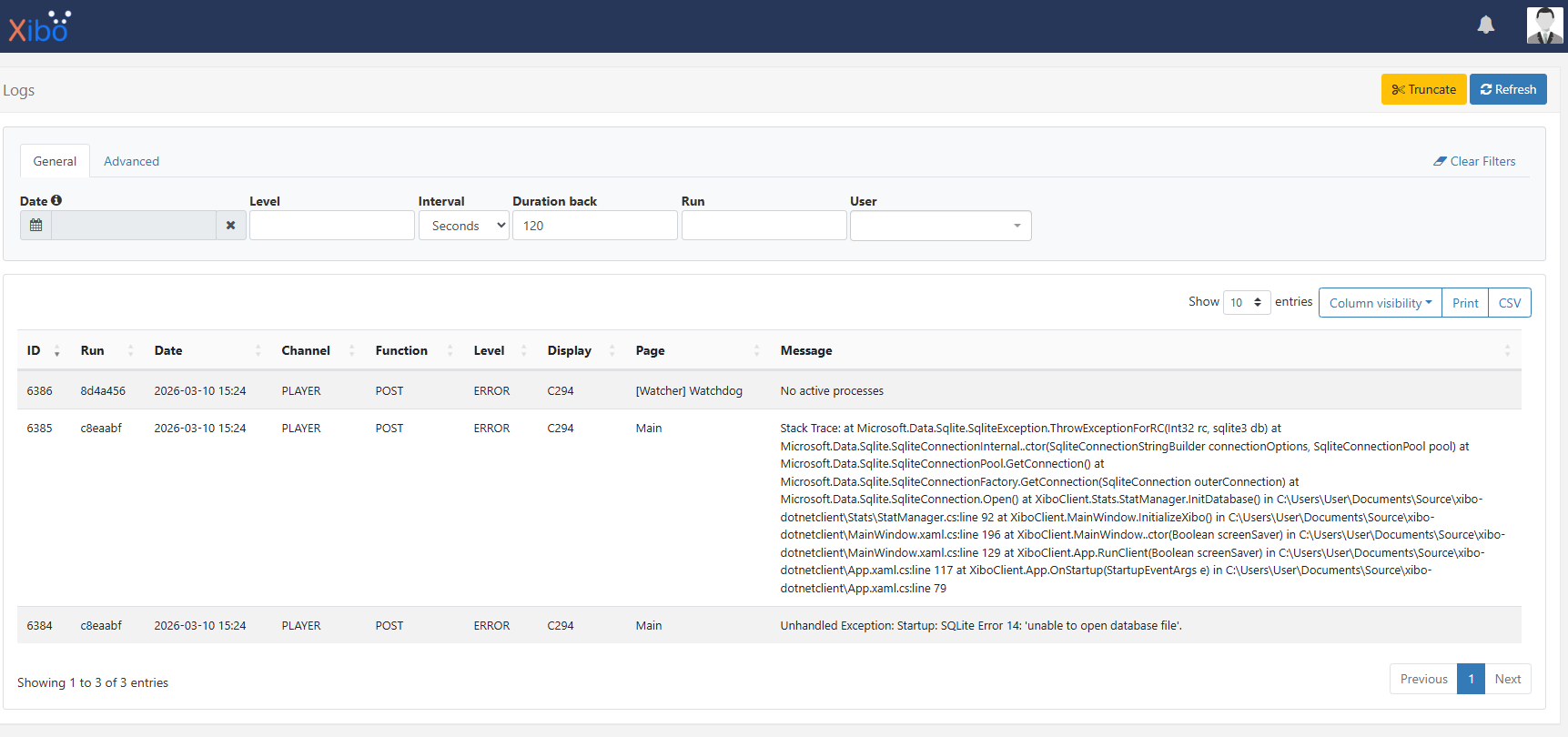
9bd2995 |
2026-03-13 11:11:24 |
PLAYER |
[Watcher] Watchdog |
POST |
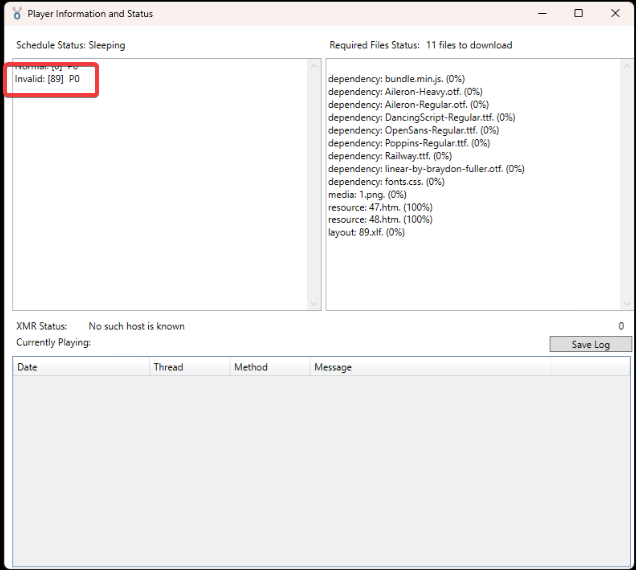
No active processes |
C295 |
ERROR |
0 |
| 8017 |
2cf2ea0 |
2026-03-13 11:13:53 |
WEB |
/user/pref |
POST |
Validate User |
|
DEBUG |
117 |
| 8018 |
2cf2ea0 |
2026-03-13 11:13:53 |
WEB |
/user/pref |
POST |
Saving user. User hbeck. userId: 2, UserTypeId: 1, homePageId: 0, email = |
|
DEBUG |
117 |
| 8053 |
34099e5 |
2026-03-13 11:14:00 |
WEB |
/display |
GET |
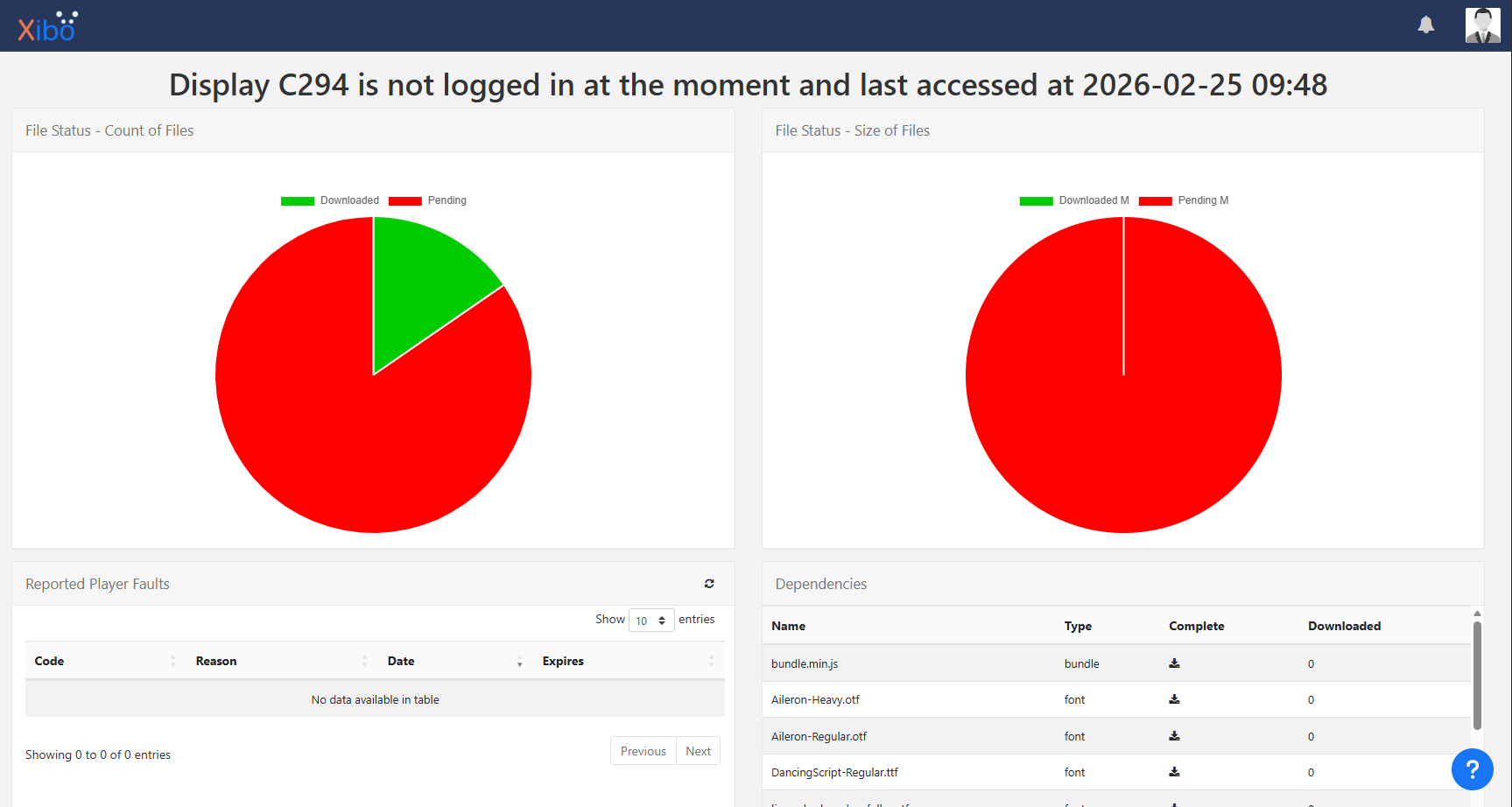
Timed out display. Last Accessed: 2026-03-10 04:39:20. Time out: 2026-03-10 04:44:50 |
|
DEBUG |
117 |
| 8064 |
34099e5 |
2026-03-13 11:14:00 |
WEB |
/display |
GET |
Timed out display. Last Accessed: 2026-02-27 04:54:47. Time out: 2026-02-27 05:00:17 |
|
DEBUG |
117 |
| 8070 |
34099e5 |
2026-03-13 11:14:00 |
WEB |
/display |
GET |
Cache miss for setCurrentLayoutId on display C294 |
|
DEBUG |
117 |
| 8075 |
34099e5 |
2026-03-13 11:14:00 |
WEB |
/display |
GET |
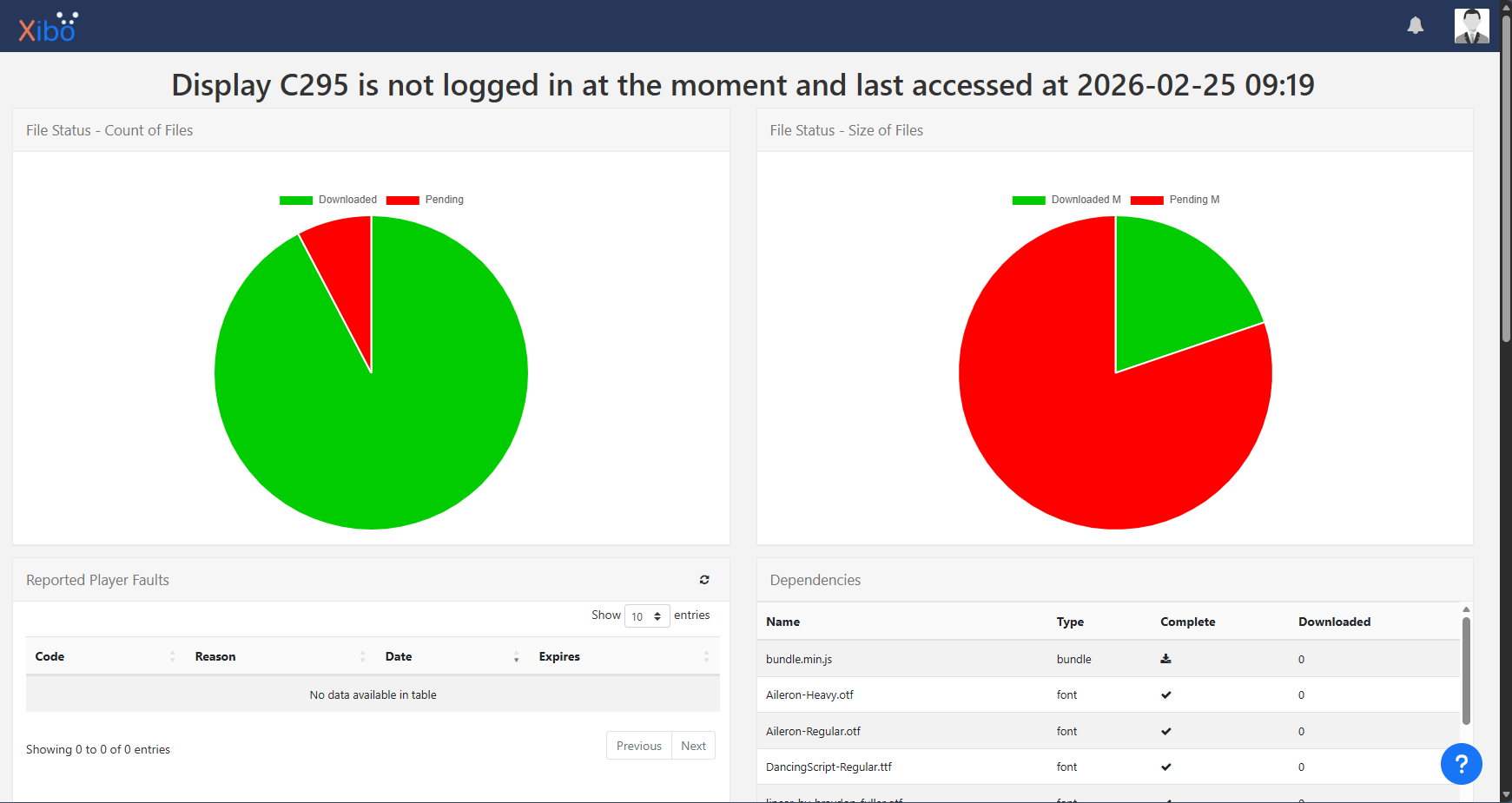
Cache miss for setCurrentLayoutId on display C295 |
|
DEBUG |
117 |
| 8080 |
34099e5 |
2026-03-13 11:14:00 |
WEB |
/display |
GET |
Cache miss for setCurrentLayoutId on display C299 |
|
DEBUG |
117 |
| 8085 |
34099e5 |
2026-03-13 11:14:00 |
WEB |
/display |
GET |
Cache miss for setCurrentLayoutId on display Display |
|
DEBUG |
117 |
| 8094 |
9a93b6a |
2026-03-13 11:14:00 |
WEB |
/user/pref |
POST |
Validate User |
|
DEBUG |
117 |
| 8095 |
9a93b6a |
2026-03-13 11:14:00 |
WEB |
/user/pref |
POST |
Saving user. User hbeck. userId: 2, UserTypeId: 1, homePageId: 0, email = |
|
DEBUG |
117 |
| 8106 |
09eebf7 |
2026-03-13 11:14:01 |
WEB |
/display |
GET |
Timed out display. Last Accessed: 2026-03-10 04:39:20. Time out: 2026-03-10 04:44:50 |
|
DEBUG |
117 |
| 8117 |
09eebf7 |
2026-03-13 11:14:01 |
WEB |
/display |
GET |
Timed out display. Last Accessed: 2026-02-27 04:54:47. Time out: 2026-02-27 05:00:17 |
|
DEBUG |
117 |
| 8123 |
09eebf7 |
2026-03-13 11:14:01 |
WEB |
/display |
GET |
Cache miss for setCurrentLayoutId on display C294 |
|
DEBUG |
117 |
| 8128 |
09eebf7 |
2026-03-13 11:14:01 |
WEB |
/display |
GET |
Cache miss for setCurrentLayoutId on display C295 |
|
DEBUG |
117 |
| 8133 |
09eebf7 |
2026-03-13 11:14:01 |
WEB |
/display |
GET |
Cache miss for setCurrentLayoutId on display C299 |
|
DEBUG |
117 |
| 8138 |
09eebf7 |
2026-03-13 11:14:01 |
WEB |
/display |
GET |
Cache miss for setCurrentLayoutId on display Display |
|
DEBUG |
117 |
| 8147 |
41c14f3 |
2026-03-13 11:14:01 |
WEB |
/user/pref |
POST |
Validate User |
|
DEBUG |
117 |
| 8148 |
41c14f3 |
2026-03-13 11:14:01 |
WEB |
/user/pref |
POST |
Saving user. User hbeck. userId: 2, UserTypeId: 1, homePageId: 0, email = |
|
DEBUG |
117 |
| 8150 |
d3174dd |
2026-03-13 11:14:02 |
CONSOLE |
|
GET |
poll: XTR poll started |
|
DEBUG |
0 |
| 8151 |
d3174dd |
2026-03-13 11:14:02 |
CONSOLE |
|
GET |
No timed out tasks. |
|
DEBUG |
0 |
| 8152 |
d3174dd |
2026-03-13 11:14:02 |
CONSOLE |
|
GET |
run: CRON syntax error for taskId 8, e: 6 is not a valid position |
|
INFO |
0 |
| 8153 |
d3174dd |
2026-03-13 11:14:02 |
CONSOLE |
|
GET |
poll: Running Task 8 |
|
INFO |
0 |
| 8154 |
d3174dd |
2026-03-13 11:14:02 |
CONSOLE |
|
GET |
run: Running Task Sync Dynamic Playlists [8], Class = \Xibo\XTR\DynamicPlaylistSyncTask |
|
DEBUG |
0 |
| 8155 |
d3174dd |
2026-03-13 11:14:02 |
CONSOLE |
|
GET |
Last media updated date is 2026-03-02 12:07:08 |
|
DEBUG |
0 |
| 8156 |
d3174dd |
2026-03-13 11:14:02 |
CONSOLE |
|
GET |
Last playlist updated date is 2026-03-11 12:34:05 |
|
DEBUG |
0 |
| 8157 |
d3174dd |
2026-03-13 11:14:02 |
CONSOLE |
|
GET |
run: Finished Task Sync Dynamic Playlists [8] Run Dt: 2026-03-13 11:14:02 |
|
DEBUG |
0 |
| 8158 |
d3174dd |
2026-03-13 11:14:02 |
CONSOLE |
|
GET |
run: CRON syntax error for taskId 10, e: 6 is not a valid position |
|
INFO |
0 |
| 8159 |
d3174dd |
2026-03-13 11:14:02 |
CONSOLE |
|
GET |
run: CRON syntax error for taskId 14, e: 6 is not a valid position |
|
INFO |
0 |
| 8160 |
d3174dd |
2026-03-13 11:14:02 |
CONSOLE |
|
GET |
XTR poll stopped |
|
DEBUG |
0 |
| 8166 |
0e8d633 |
2026-03-13 11:14:07 |
WEB |
/display/manage/2 |
GET |
Base for size is 2 and suffix is M |
|
DEBUG |
117 |
| 8193 |
f76164d |
2026-03-13 11:14:07 |
WEB |
/user/pref |
POST |
Validate User |
|
DEBUG |
117 |
| 8194 |
f76164d |
2026-03-13 11:14:07 |
WEB |
/user/pref |
POST |
Saving user. User hbeck. userId: 2, UserTypeId: 1, homePageId: 0, email = |
|
DEBUG |
117 |
| 8199 |
2be9a2e |
2026-03-13 11:14:25 |
PLAYER |
[Watcher] Watchdog |
POST |
No active processes |
C295 |
ERROR |
0 |
| 8200 |
f00b8df |
2026-03-13 11:15:01 |
CONSOLE |
|
GET |
poll: XTR poll started |
|
DEBUG |
0 |
| 8201 |
f00b8df |
2026-03-13 11:15:01 |
CONSOLE |
|
GET |
No timed out tasks. |
|
DEBUG |
0 |
| 8202 |
f00b8df |
2026-03-13 11:15:01 |
CONSOLE |
|
GET |
poll: Running Task 2 |
|
INFO |
0 |
| 8203 |
f00b8df |
2026-03-13 11:15:01 |
CONSOLE |
|
GET |
run: Running Task Regular Maintenance [2], Class = \Xibo\XTR\MaintenanceRegularTask |
|
DEBUG |
0 |
| 8204 |
f00b8df |
2026-03-13 11:15:01 |
CONSOLE |
|
GET |
assertXmrKey: asserting key |
|
DEBUG |
0 |
| 8205 |
f00b8df |
2026-03-13 11:15:01 |
CONSOLE |
|
GET |
assertXmrKey: asserted key |
|
DEBUG |
0 |
| 8212 |
f00b8df |
2026-03-13 11:15:01 |
CONSOLE |
|
GET |
Timed out display. Last Accessed: 2026-03-10 04:39:20. Time out: 2026-03-10 04:44:50 |
|
DEBUG |
0 |
| 8223 |
f00b8df |
2026-03-13 11:15:01 |
CONSOLE |
|
GET |
Timed out display. Last Accessed: 2026-02-27 04:54:47. Time out: 2026-02-27 05:00:17 |
|
DEBUG |
0 |
| 8231 |
f00b8df |
2026-03-13 11:15:01 |
CONSOLE |
|
GET |
Load Playlist with {loadPermissions:false,loadWidgets:true,loadTags:false,loadActions:true,checkDisplayOrder:false} |
|
DEBUG |
0 |
| 8233 |
f00b8df |
2026-03-13 11:15:01 |
CONSOLE |
|
GET |
Delta duration after updateDuration 60 |
|
DEBUG |
0 |
| 8234 |
f00b8df |
2026-03-13 11:15:01 |
CONSOLE |
|
GET |
Updating Playlist 1. Id = 96 |
|
DEBUG |
0 |
| 8235 |
f00b8df |
2026-03-13 11:15:01 |
CONSOLE |
|
GET |
Audit Trail message recorded for Playlist with id 96. Message: Saved from IP , session 0 |
|
DEBUG |
0 |
| 8236 |
f00b8df |
2026-03-13 11:15:01 |
CONSOLE |
|
GET |
Load Playlist with {loadPermissions:false,loadWidgets:true,loadTags:false,loadActions:true,checkDisplayOrder:false} |
|
DEBUG |
0 |
| 8238 |
f00b8df |
2026-03-13 11:15:01 |
CONSOLE |
|
GET |
Delta duration after updateDuration 10 |
|
DEBUG |
0 |
| 8239 |
f00b8df |
2026-03-13 11:15:01 |
CONSOLE |
|
GET |
Updating Playlist 2. Id = 97 |
|
DEBUG |
0 |
| 8240 |
f00b8df |
2026-03-13 11:15:01 |
CONSOLE |
|
GET |
Audit Trail message recorded for Playlist with id 97. Message: Saved from IP , session 0 |
|
DEBUG |
0 |
| 8241 |
f00b8df |
2026-03-13 11:15:01 |
CONSOLE |
|
GET |
Load Playlist with {loadPermissions:false,loadWidgets:true,loadTags:false,loadActions:true,checkDisplayOrder:false} |
|
DEBUG |
0 |
| 8243 |
f00b8df |
2026-03-13 11:15:01 |
CONSOLE |
|
GET |
Delta duration after updateDuration 10 |
|
DEBUG |
0 |
| 8244 |
f00b8df |
2026-03-13 11:15:01 |
CONSOLE |
|
GET |
Updating Playlist Default Layout-1. Id = 98 |
|
DEBUG |
0 |
| 8245 |
f00b8df |
2026-03-13 11:15:01 |
CONSOLE |
|
GET |
Audit Trail message recorded for Playlist with id 98. Message: Saved from IP , session 0 |
|
DEBUG |
0 |
| 8246 |
f00b8df |
2026-03-13 11:15:01 |
CONSOLE |
|
GET |
Load Playlist with {loadPermissions:false,loadWidgets:true,loadTags:false,loadActions:true,checkDisplayOrder:false} |
|
DEBUG |
0 |
| 8248 |
f00b8df |
2026-03-13 11:15:01 |
CONSOLE |
|
GET |
Delta duration after updateDuration 0 |
|
DEBUG |
0 |
| 8249 |
f00b8df |
2026-03-13 11:15:01 |
CONSOLE |
|
GET |
Updating Playlist Default Layout-1 - drawer. Id = 99 |
|
DEBUG |
0 |
| 8250 |
f00b8df |
2026-03-13 11:15:01 |
CONSOLE |
|
GET |
Audit Trail message recorded for Playlist with id 99. Message: Saved from IP , session 0 |
|
DEBUG |
0 |
| 8254 |
f00b8df |
2026-03-13 11:15:01 |
CONSOLE |
|
GET |
No layouts to publish. |
|
DEBUG |
0 |
| 8255 |
f00b8df |
2026-03-13 11:15:01 |
CONSOLE |
|
GET |
PROFILE: RegularMaintenance::tidyAdCampaignSchedules - start: 1773400501.5537 |
|
DEBUG |
0 |
| 8256 |
f00b8df |
2026-03-13 11:15:01 |
CONSOLE |
|
GET |
tidyAdCampaignSchedules : Deleted 0 events |
|
DEBUG |
0 |
| 8257 |
f00b8df |
2026-03-13 11:15:01 |
CONSOLE |
|
GET |
PROFILE: RegularMaintenance::tidyAdCampaignSchedules - end: 1773400501.5615, duration: 0.0078649520874023 |
|
DEBUG |
0 |
| 8258 |
f00b8df |
2026-03-13 11:15:01 |
CONSOLE |
|
GET |
PROFILE: RegularMaintenance::tidyUnusedFullScreenLayout - start: 1773400501.5642 |
|
DEBUG |
0 |
| 8260 |
f00b8df |
2026-03-13 11:15:01 |
CONSOLE |
|
GET |
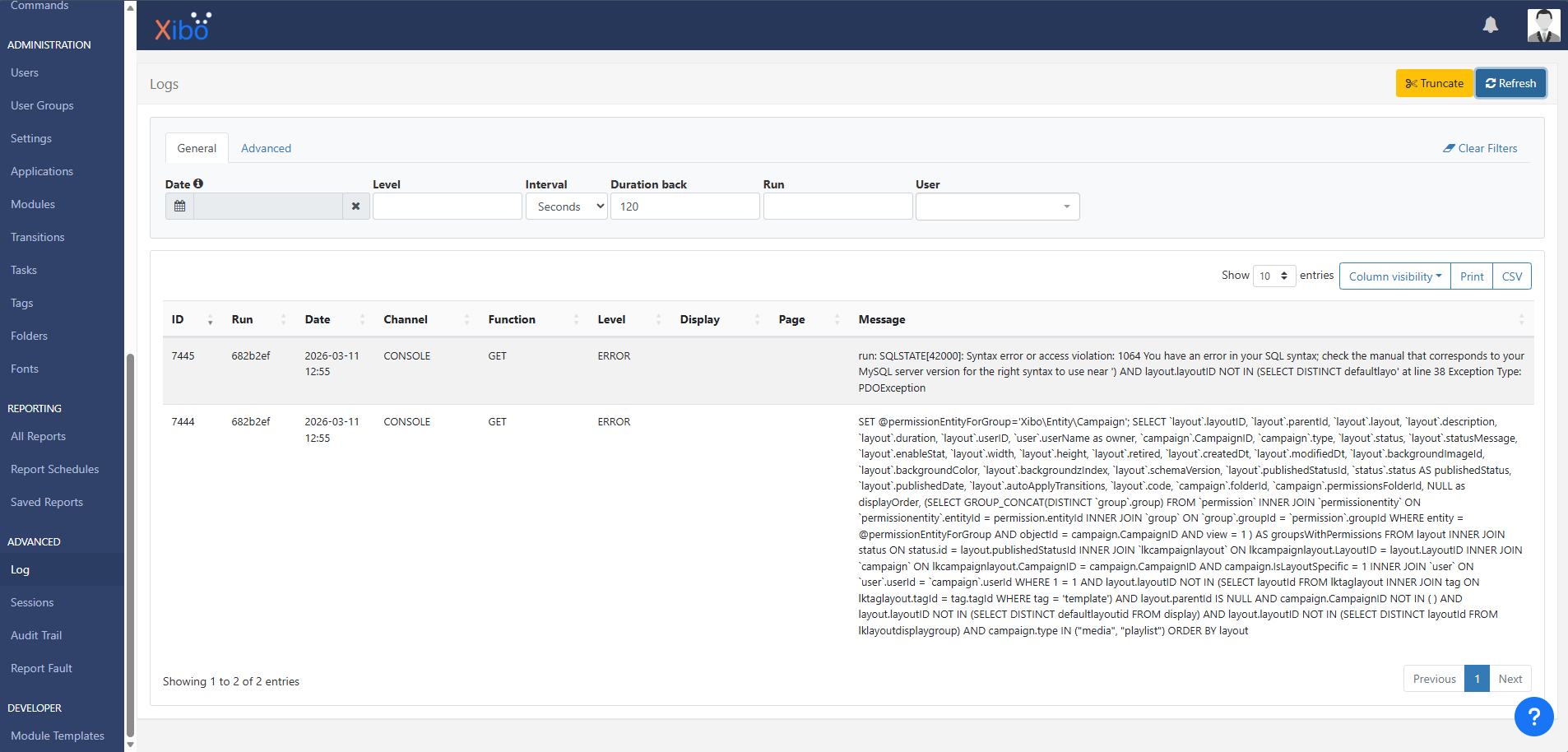
SET @permissionEntityForGroup=‘Xibo\Entity\Campaign’; SELECT layout.layoutID, layout.parentId, layout.layout, layout.description, layout.duration, layout.userID, user.userName as owner, campaign.CampaignID, campaign.type, layout.status, layout.statusMessage, layout.enableStat, layout.width, layout.height, layout.retired, layout.createdDt, layout.modifiedDt, layout.backgroundImageId, layout.backgroundColor, layout.backgroundzIndex, layout.schemaVersion, layout.publishedStatusId, status.status AS publishedStatus, layout.publishedDate, layout.autoApplyTransitions, layout.code, campaign.folderId, campaign.permissionsFolderId, NULL as displayOrder, (SELECT GROUP_CONCAT(DISTINCT group.group) FROM permission INNER JOIN permissionentity ON permissionentity.entityId = permission.entityId INNER JOIN group ON group.groupId = permission.groupId WHERE entity = @permissionEntityForGroup AND objectId = campaign.CampaignID AND view = 1 ) AS groupsWithPermissions FROM layout INNER JOIN status ON status.id = layout.publishedStatusId INNER JOIN lkcampaignlayout ON lkcampaignlayout.LayoutID = layout.LayoutID INNER JOIN campaign ON lkcampaignlayout.CampaignID = campaign.CampaignID AND campaign.IsLayoutSpecific = 1 INNER JOIN user ON user.userId = campaign.userId WHERE 1 = 1 AND layout.layoutID NOT IN (SELECT layoutId FROM lktaglayout INNER JOIN tag ON lktaglayout.tagId = tag.tagId WHERE tag = ‘template’) AND layout.parentId IS NULL AND campaign.CampaignID NOT IN ( ) AND layout.layoutID NOT IN (SELECT DISTINCT defaultlayoutid FROM display) AND layout.layoutID NOT IN (SELECT DISTINCT layoutId FROM lklayoutdisplaygroup) AND campaign.type IN (media, playlist) ORDER BY layout |
|
ERROR |
0 |
| 8261 |
f00b8df |
2026-03-13 11:15:01 |
CONSOLE |
|
GET |
run: SQLSTATE[42000]: Syntax error or access violation: 1064 You have an error in your SQL syntax; check the manual that corresponds to your MySQL server version for the right syntax to use near ‘) AND layout.layoutID NOT IN (SELECT DISTINCT defaultlayo’ at line 38 Exception Type: PDOException |
|
ERROR |
0 |
| 8262 |
f00b8df |
2026-03-13 11:15:01 |
CONSOLE |
|
GET |
#0 /var/www/cms/lib/Storage/PdoStorageService.php(327): PDOStatement->execute() #1 /var/www/cms/lib/Factory/LayoutFactory.php(2662): Xibo\Storage\PdoStorageService->select() #2 /var/www/cms/lib/XTR/MaintenanceRegularTask.php(667): Xibo\Factory\LayoutFactory->query() #3 /var/www/cms/lib/XTR/MaintenanceRegularTask.php(136): Xibo\XTR\MaintenanceRegularTask->tidyUnusedFullScreenLayout() #4 /var/www/cms/lib/Controller/Task.php(442): Xibo\XTR\MaintenanceRegularTask->run() #5 /var/www/cms/lib/Controller/Task.php(559): Xibo\Controller\Task->run() #6 [internal function]: Xibo\Controller\Task->poll() #7 /var/www/cms/vendor/php-di/invoker/src/Invoker.php(74): call_user_func_array() #8 /var/www/cms/vendor/php-di/slim-bridge/src/ControllerInvoker.php(45): Invoker\Invoker->call() #9 /var/www/cms/vendor/slim/slim/Slim/Routing/Route.php(363): DI\Bridge\Slim\ControllerInvoker->__invoke() #10 /var/www/cms/vendor/slim/slim/Slim/MiddlewareDispatcher.php(73): Slim\Routing\Route->handle() #11 /var/www/cms/vendor/slim/slim/Slim/MiddlewareDispatcher.php(73): Slim\MiddlewareDispatcher->handle() #12 /var/www/cms/vendor/slim/slim/Slim/Routing/Route.php(321): Slim\MiddlewareDispatcher->handle() #13 /var/www/cms/vendor/slim/slim/Slim/Routing/RouteRunner.php(74): Slim\Routing\Route->run() #14 /var/www/cms/lib/Middleware/ConnectorMiddleware.php(57): Slim\Routing\RouteRunner->handle() #15 /var/www/cms/vendor/slim/slim/Slim/MiddlewareDispatcher.php(129): Xibo\Middleware\ConnectorMiddleware->process() #16 /var/www/cms/lib/Middleware/ListenersMiddleware.php(84): Psr\Http\Server\RequestHandlerInterface@anonymous->handle() #17 /var/www/cms/vendor/slim/slim/Slim/MiddlewareDispatcher.php(129): Xibo\Middleware\ListenersMiddleware->process() #18 /var/www/cms/lib/Middleware/Storage.php(61): Psr\Http\Server\RequestHandlerInterface@anonymous->handle() #19 /var/www/cms/vendor/slim/slim/Slim/MiddlewareDispatcher.php(129): Xibo\Middleware\Storage->process() #20 /var/www/cms/lib/Middleware/Xtr.php(86): Psr\Http\Server\RequestHandlerInterface@anonymous->handle() #21 /var/www/cms/vendor/slim/slim/Slim/MiddlewareDispatcher.php(129): Xibo\Middleware\Xtr->process() #22 /var/www/cms/lib/Middleware/State.php(89): Psr\Http\Server\RequestHandlerInterface@anonymous->handle() #23 /var/www/cms/vendor/slim/slim/Slim/MiddlewareDispatcher.php(129): Xibo\Middleware\State->process() #24 /var/www/cms/vendor/slim/twig-view/src/TwigMiddleware.php(115): Psr\Http\Server\RequestHandlerInterface@anonymous->handle() #25 /var/www/cms/vendor/slim/slim/Slim/MiddlewareDispatcher.php(129): Slim\Views\TwigMiddleware->process() #26 /var/www/cms/lib/Middleware/Log.php(61): Psr\Http\Server\RequestHandlerInterface@anonymous->handle() #27 /var/www/cms/vendor/slim/slim/Slim/MiddlewareDispatcher.php(129): Xibo\Middleware\Log->process() #28 /var/www/cms/lib/Middleware/Xmr.php(68): Psr\Http\Server\RequestHandlerInterface@anonymous->handle() #29 /var/www/cms/vendor/slim/slim/Slim/MiddlewareDispatcher.php(129): Xibo\Middleware\Xmr->process() #30 /var/www/cms/vendor/slim/slim/Slim/Middleware/RoutingMiddleware.php(45): Psr\Http\Server\RequestHandlerInterface@anonymous->handle() #31 /var/www/cms/vendor/slim/slim/Slim/MiddlewareDispatcher.php(129): Slim\Middleware\RoutingMiddleware->process() #32 /var/www/cms/vendor/slim/slim/Slim/Middleware/ErrorMiddleware.php(77): Psr\Http\Server\RequestHandlerInterface@anonymous->handle() #33 /var/www/cms/vendor/slim/slim/Slim/MiddlewareDispatcher.php(129): Slim\Middleware\ErrorMiddleware->process() #34 /var/www/cms/vendor/slim/slim/Slim/MiddlewareDispatcher.php(73): Psr\Http\Server\RequestHandlerInterface@anonymous->handle() #35 /var/www/cms/vendor/slim/slim/Slim/App.php(209): Slim\MiddlewareDispatcher->handle() #36 /var/www/cms/vendor/slim/slim/Slim/App.php(193): Slim\App->handle() #37 /var/www/cms/bin/run.php(117): Slim\App->run() #38 /var/www/cms/bin/xtr.php(9): require(‘…’) #39 {main} |
|
DEBUG |
0 |
| 8263 |
f00b8df |
2026-03-13 11:15:01 |
CONSOLE |
|
GET |
run: Finished Task Regular Maintenance [2] Run Dt: 2026-03-13 11:15:01 |
|
DEBUG |
0 |
| 8264 |
f00b8df |
2026-03-13 11:15:01 |
CONSOLE |
|
GET |
poll: Running Task 3 |
|
INFO |
0 |
| 8265 |
f00b8df |
2026-03-13 11:15:01 |
CONSOLE |
|
GET |
run: Running Task Email Notifications [3], Class = \Xibo\XTR\EmailNotificationsTask |
|
DEBUG |
0 |
| 8266 |
f00b8df |
2026-03-13 11:15:01 |
CONSOLE |
|
GET |
Notification Queue sending from |
|
DEBUG |
0 |
| 8267 |
f00b8df |
2026-03-13 11:15:01 |
CONSOLE |
|
GET |
run: Finished Task Email Notifications [3] Run Dt: 2026-03-13 11:15:01 |
|
DEBUG |
0 |
| 8268 |
f00b8df |
2026-03-13 11:15:01 |
CONSOLE |
|
GET |
run: CRON syntax error for taskId 8, e: 6 is not a valid position |
|
INFO |
0 |
| 8269 |
f00b8df |
2026-03-13 11:15:01 |
CONSOLE |
|
GET |
poll: Running Task 8 |
|
INFO |
0 |
| 8270 |
f00b8df |
2026-03-13 11:15:01 |
CONSOLE |
|
GET |
run: Running Task Sync Dynamic Playlists [8], Class = \Xibo\XTR\DynamicPlaylistSyncTask |
|
DEBUG |
0 |
| 8271 |
f00b8df |
2026-03-13 11:15:01 |
CONSOLE |
|
GET |
Last media updated date is 2026-03-02 12:07:08 |
|
DEBUG |
0 |
| 8272 |
f00b8df |
2026-03-13 11:15:01 |
CONSOLE |
|
GET |
Last playlist updated date is 2026-03-11 12:34:05 |
|
DEBUG |
0 |
| 8273 |
f00b8df |
2026-03-13 11:15:01 |
CONSOLE |
|
GET |
run: Finished Task Sync Dynamic Playlists [8] Run Dt: 2026-03-13 11:15:01 |
|
DEBUG |
0 |
| 8274 |
f00b8df |
2026-03-13 11:15:01 |
CONSOLE |
|
GET |
poll: Running Task 9 |
|
INFO |
0 |
| 8275 |
f00b8df |
2026-03-13 11:15:01 |
CONSOLE |
|
GET |
run: Running Task Widget Sync [9], Class = \Xibo\XTR\WidgetSyncTask |
|
DEBUG |
0 |
| 8276 |
f00b8df |
2026-03-13 11:15:01 |
CONSOLE |
|
GET |
Total time spent caching is 0, synced 0 widgets |
|
INFO |
0 |
| 8277 |
f00b8df |
2026-03-13 11:15:01 |
CONSOLE |
|
GET |
run: Finished Task Widget Sync [9] Run Dt: 2026-03-13 11:15:01 |
|
DEBUG |
0 |
| 8278 |
f00b8df |
2026-03-13 11:15:01 |
CONSOLE |
|
GET |
run: CRON syntax error for taskId 10, e: 6 is not a valid position |
|
INFO |
0 |
| 8279 |
f00b8df |
2026-03-13 11:15:01 |
CONSOLE |
|
GET |
poll: Running Task 10 |
|
INFO |
0 |
| 8280 |
f00b8df |
2026-03-13 11:15:01 |
CONSOLE |
|
GET |
run: Running Task Report Schedule [10], Class = \Xibo\XTR\ReportScheduleTask |
|
DEBUG |
0 |
| 8281 |
f00b8df |
2026-03-13 11:15:01 |
CONSOLE |
|
GET |
run: Finished Task Report Schedule [10] Run Dt: 2026-03-13 11:15:01 |
|
DEBUG |
0 |
| 8282 |
f00b8df |
2026-03-13 11:15:01 |
CONSOLE |
|
GET |
poll: Running Task 12 |
|
INFO |
0 |
| 8283 |
f00b8df |
2026-03-13 11:15:01 |
CONSOLE |
|
GET |
run: Running Task Schedule Reminder [12], Class = \Xibo\XTR\ScheduleReminderTask |
|
DEBUG |
0 |
| 8284 |
f00b8df |
2026-03-13 11:15:01 |
CONSOLE |
|
GET |
run: Finished Task Schedule Reminder [12] Run Dt: 2026-03-13 11:15:01 |
|
DEBUG |
0 |
| 8285 |
f00b8df |
2026-03-13 11:15:01 |
CONSOLE |
|
GET |
poll: Running Task 13 |
|
INFO |
0 |
| 8286 |
f00b8df |
2026-03-13 11:15:01 |
CONSOLE |
|
GET |
run: Running Task Image Processing [13], Class = \Xibo\XTR\ImageProcessingTask |
|
DEBUG |
0 |
| 8288 |
f00b8df |
2026-03-13 11:15:01 |
CONSOLE |
|
GET |
run: Finished Task Image Processing [13] Run Dt: 2026-03-13 11:15:01 |
|
DEBUG |
0 |
| 8289 |
f00b8df |
2026-03-13 11:15:01 |
CONSOLE |
|
GET |
run: CRON syntax error for taskId 14, e: 6 is not a valid position |
|
INFO |
0 |
| 8290 |
f00b8df |
2026-03-13 11:15:01 |
CONSOLE |
|
GET |
XTR poll stopped |
|
DEBUG |
0 |
| logId |
runNo |
logDate |
channel |
page |
function |
message |
display.display |
type |
sessionHistoryId |