Quick question, how can I send you a DM?
Thanks,
Hannah
Quick question, how can I send you a DM?
Thanks,
Hannah
Hi Hannah,
You can click on my picture on my message and then click on ‘Message’ to send me a DM. By the way, I’ve sent you a DM, and you can respond to that with the exported copy of the layout.
Kind regards,
Jerry
Hi Hannah,
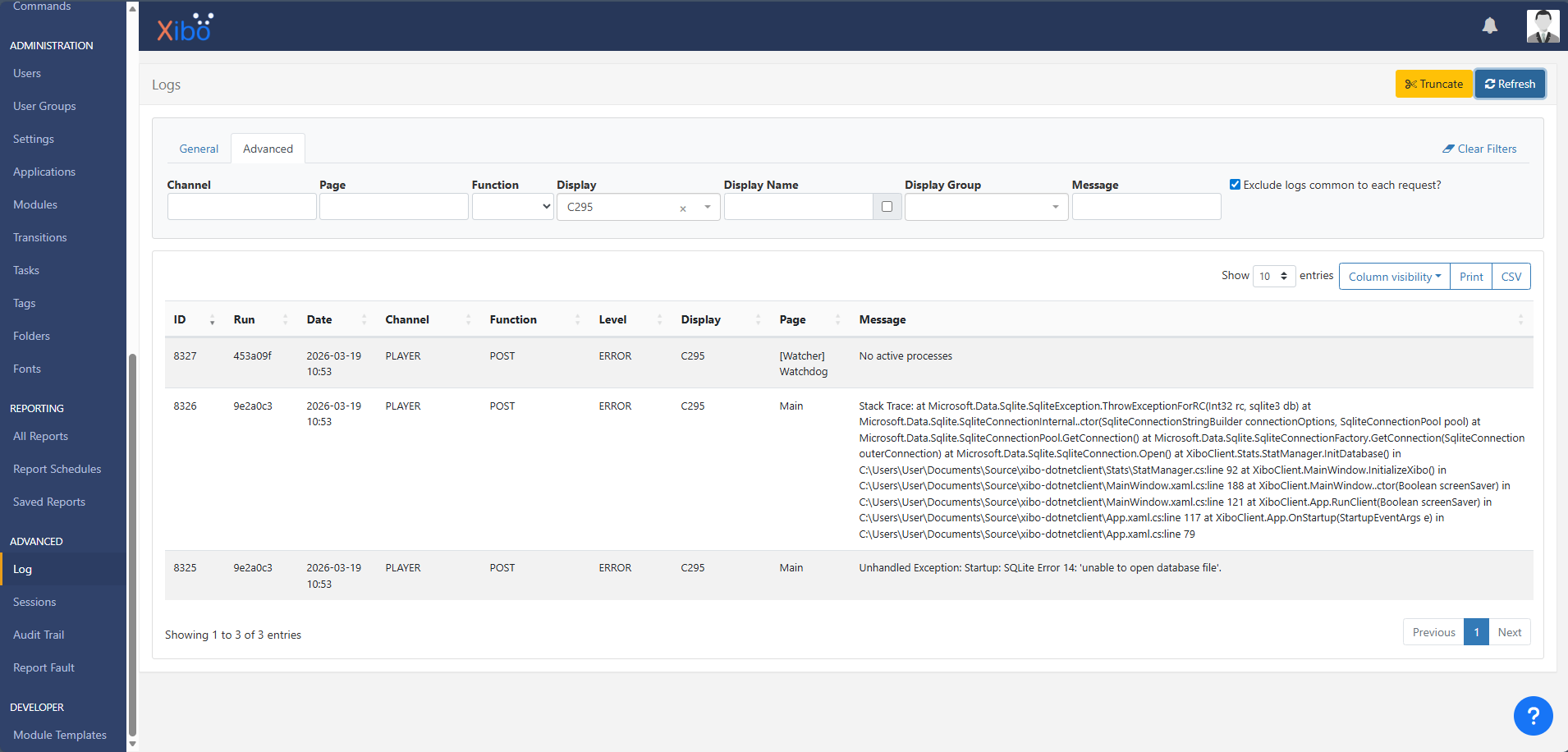
I’ve noticed that there was an error in the logs for the ‘Report Fault’ that could be triggering the issue; it is highly possible that some tasks are not running correctly, preventing the player from downloading the dependencies. Could you please check and perform the below steps for me?
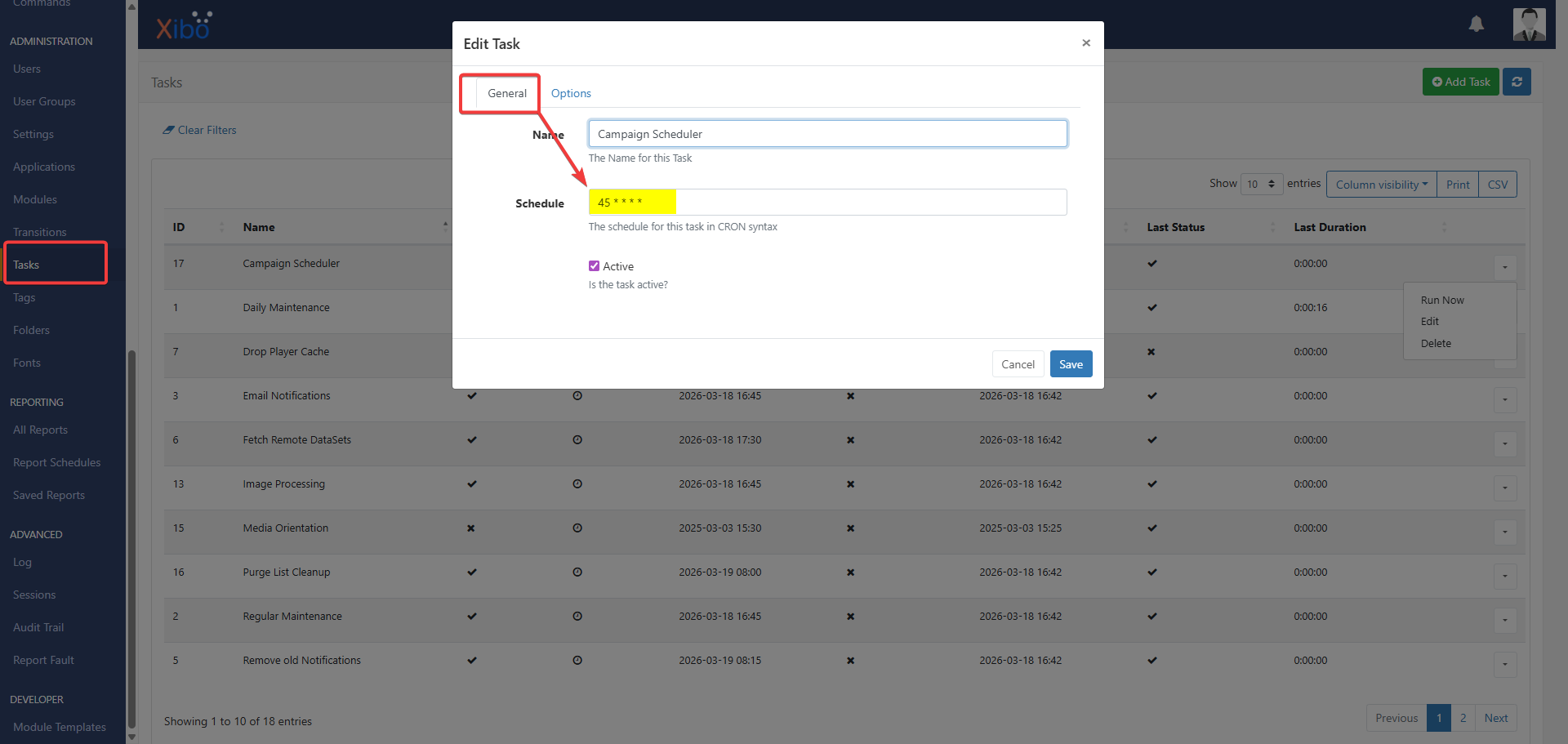
If you go to CMS, Task section, then click on the row menu of a task, you should see in the ‘General’ tab the ‘Schedule’ field. There would be numbers and asterisks separated by a space in that field. Please note that each block is separated by a space. Please check if there are tasks that have 6 blocks in them. Remove the 6th block/asterisk so that it will only be 5 blocks. Please take note of those tasks that have 6 blocks in them.
For example:
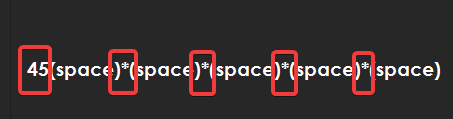
Below we see, 45(space)asterisk*(space)asterisk(space)asterisk(space)*asterisk(space). The bolded ones are blocks separated by a space where we see that there are 5 blocks..
We can observe that there are 5 blocks for this example and nothing to do with this one. We are looking for tasks with 6 blocks.
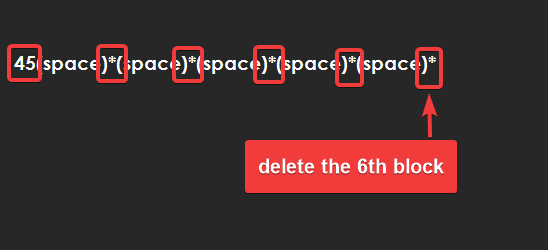
Example of what we are looking for: we need to delete the 6th block.
This issue has been identified already as a bug and will be fixed in the CMS V4.4.1 release; however, the above workaround was found to fix the issue. You can view the bug post here for reference.
Kind regards,
Jerry
Hi Jerry,
Thank you for responding.
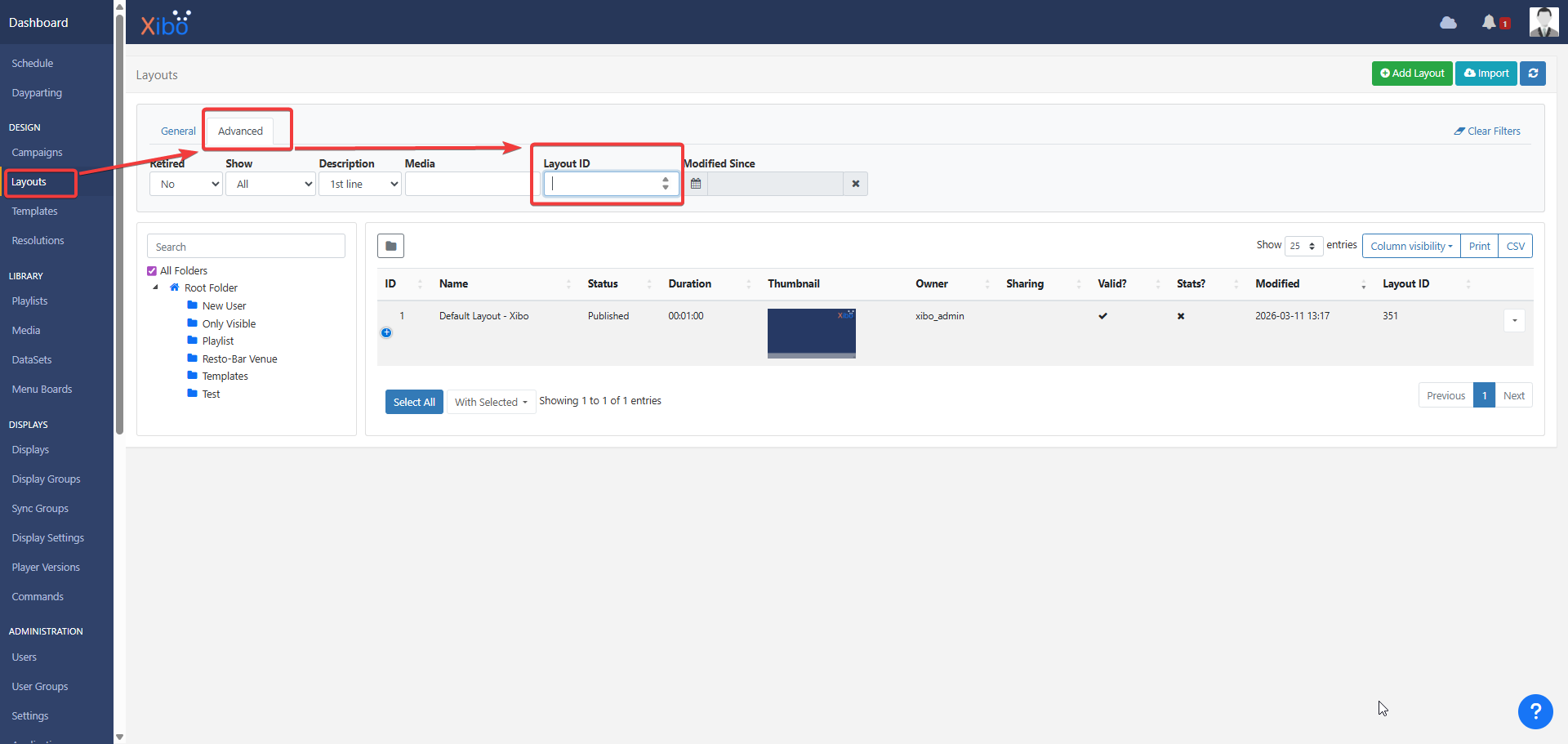
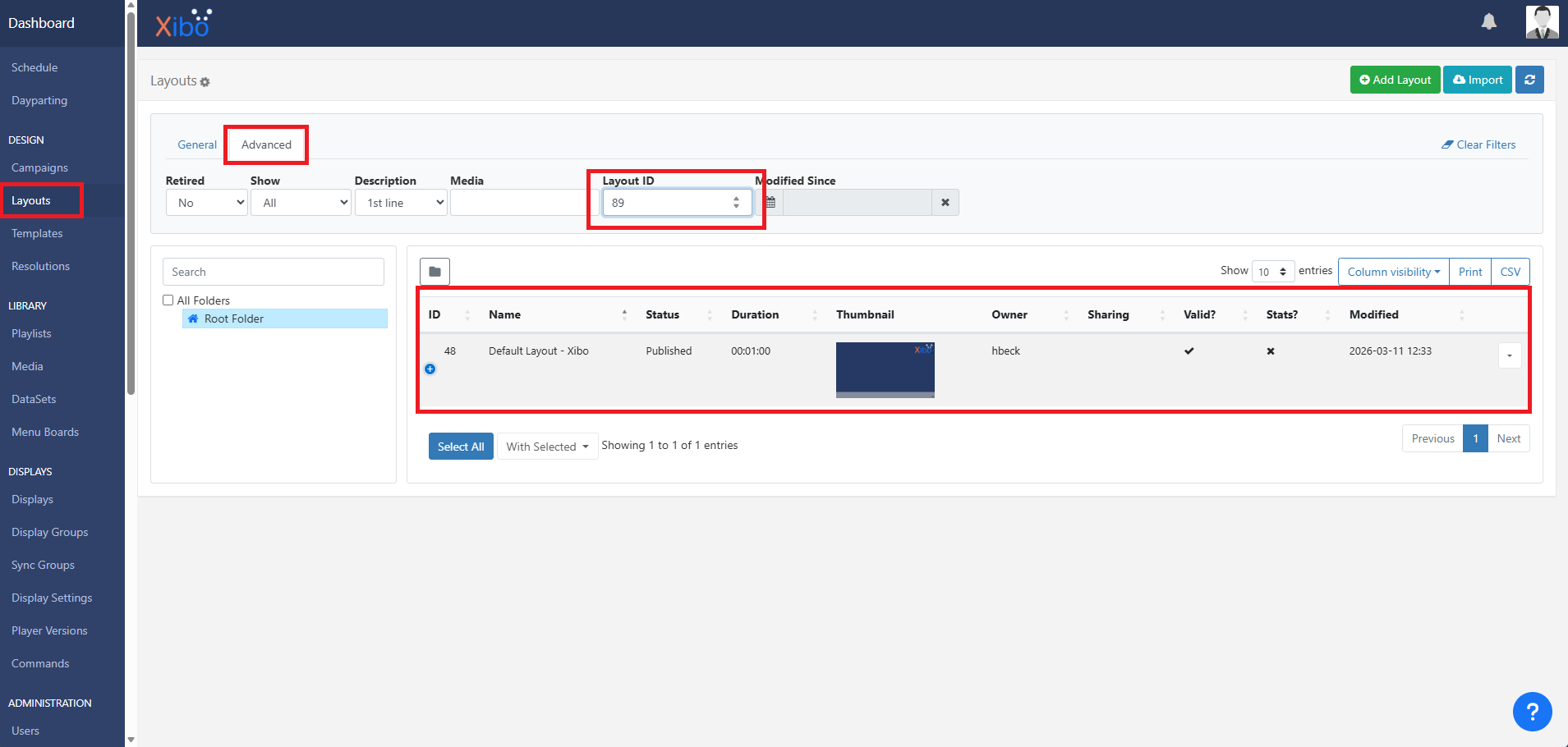
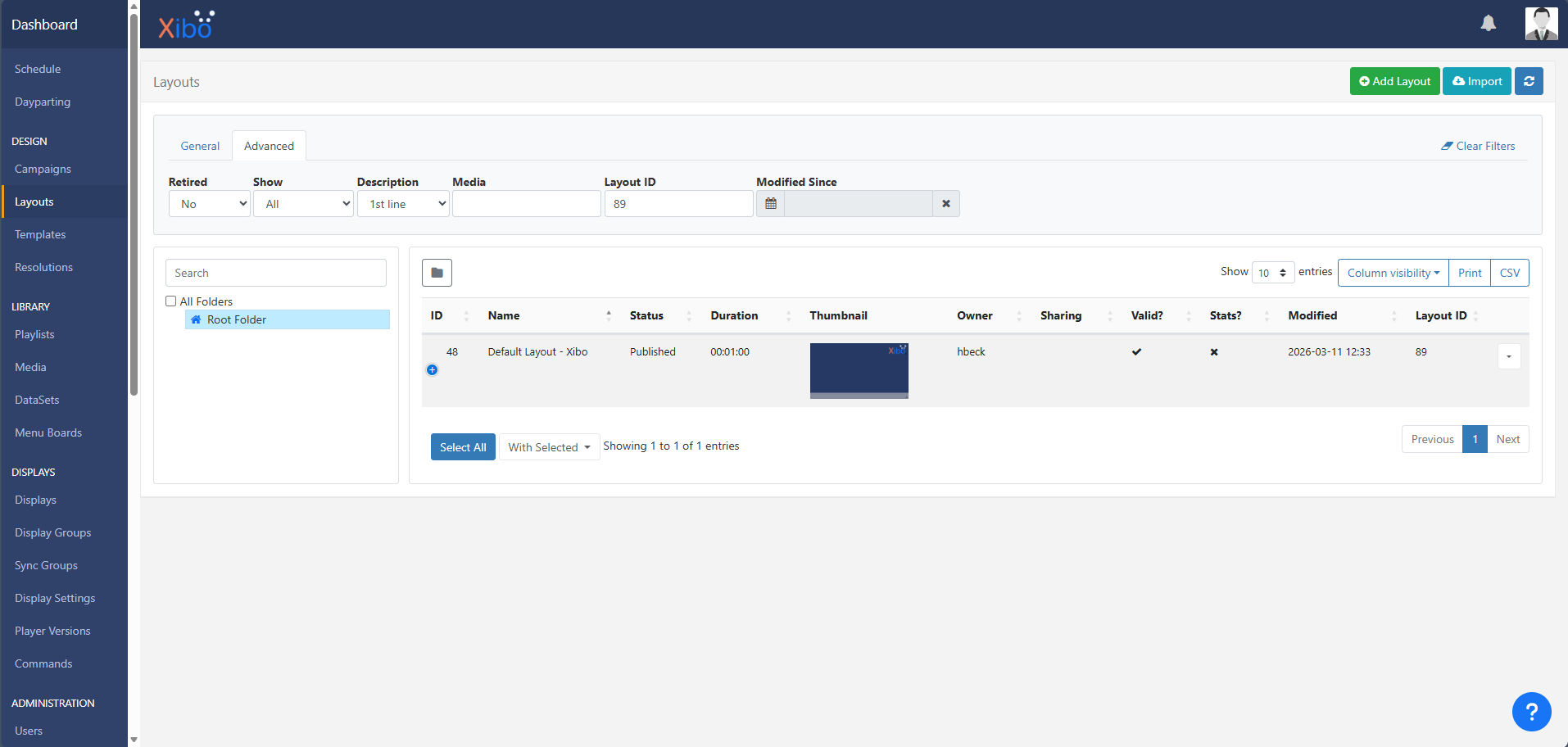
I’m seeing the “Default Layout - Xibo” appear when I filter by Layout ID 89, even though the ID shown to the right of the layout name is 48.
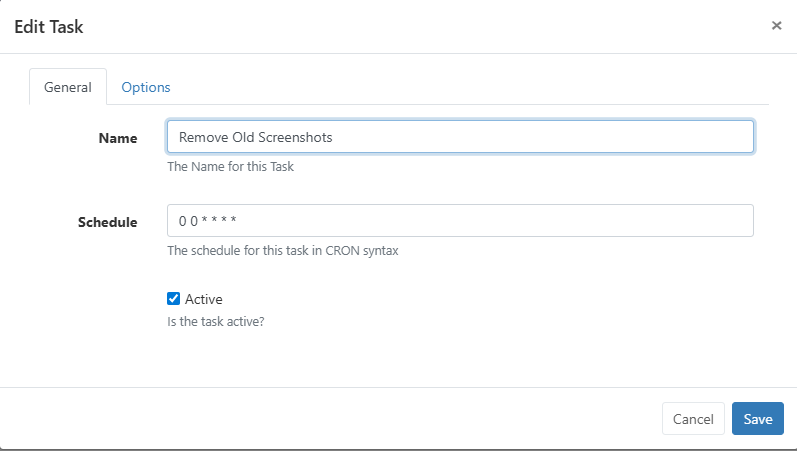
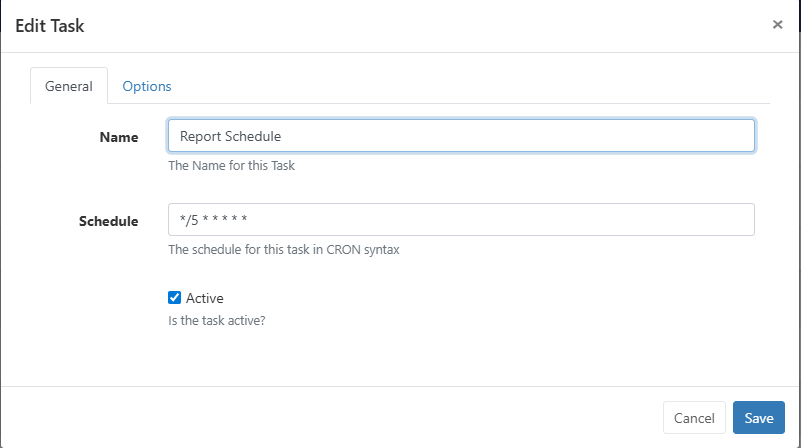
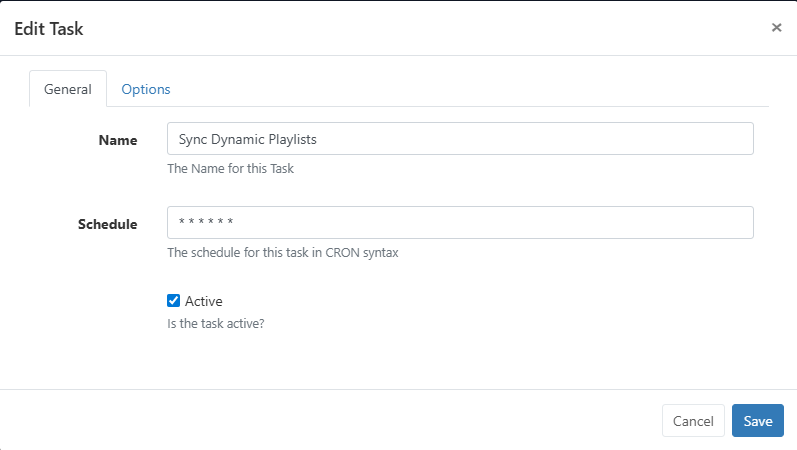
I found a few tasks with extra blocks and removed them as suggested. Those tasks and what they were and changed to include:
0 0 * * * * → 0 0 * * **/5 * * * * *→ */5 * * * ** * * * * *→ * * * * *While reviewing the tasks, I noticed several using the notation */x * * * *, by default. Is this considered valid five‑field CRON syntax? The tasks using this format include:
*/5 * * * **/5 * * * **/5 * * * **/5 * * * **/5 * * * **/10 * * * **/3 * * * *Please let me know if I should change these ones as well. I’ll export the layout and send you a copy via the DM you sent me.
Thanks,
Hannah
Hi Hannah,
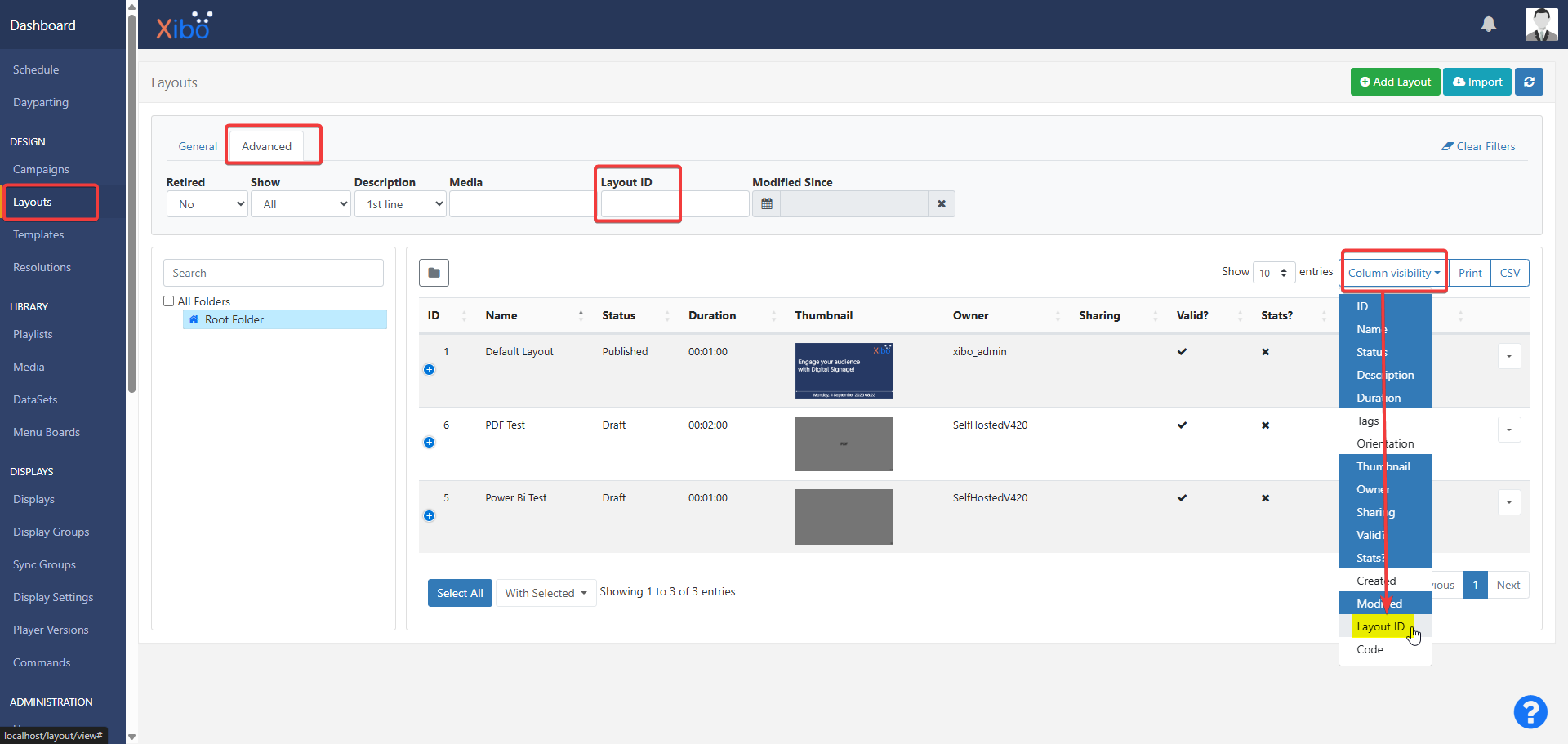
To show the Layout ID, on the CMS Layout section, please click on ‘Column Visibility’ and then click to select ‘Layout ID’, this will show a column for a Layout ID, and please confirm if the Default Layout I sent you shows a Layout ID of 89.
I think the tasks below show blocks of 5, and we don’t need to change anything for those.
*/5 * * * *Is the issue still persisting even after editing the task in CMS?
Kind regards,
Jerry
Hi Jerry,
I have confirmed the default layout you sent me shows a Layout ID of 89.
Yes, the issue still persists. I ensured the Xibo for Windows Player was completely closed and deleted all contents in the Xibo Library. I also instructed the display to reconfigure XMR. After relaunching the player, I’m still experiencing the same issue. I’ve gone ahead and captured logs as well. I’ll send you a more detailed report from the Report Fault in our DM.
Thanks,
Hannah
Hi Hannah,
Thank you for sending me the files and providing permissions to download them.
I’ve tried the default layout on my end, and it is showing as an invalid layout due to an empty region in it for some reason. Could you please perform the below for me?
Create a simple layout with just text and a static image (PNG file) and publish it. Assign this to your test display as the default layout. To do so, go to the CMS, Displays section, click the row menu for the display, and then click on ‘Default Layout’. Finally, select the layout you’ve just created.
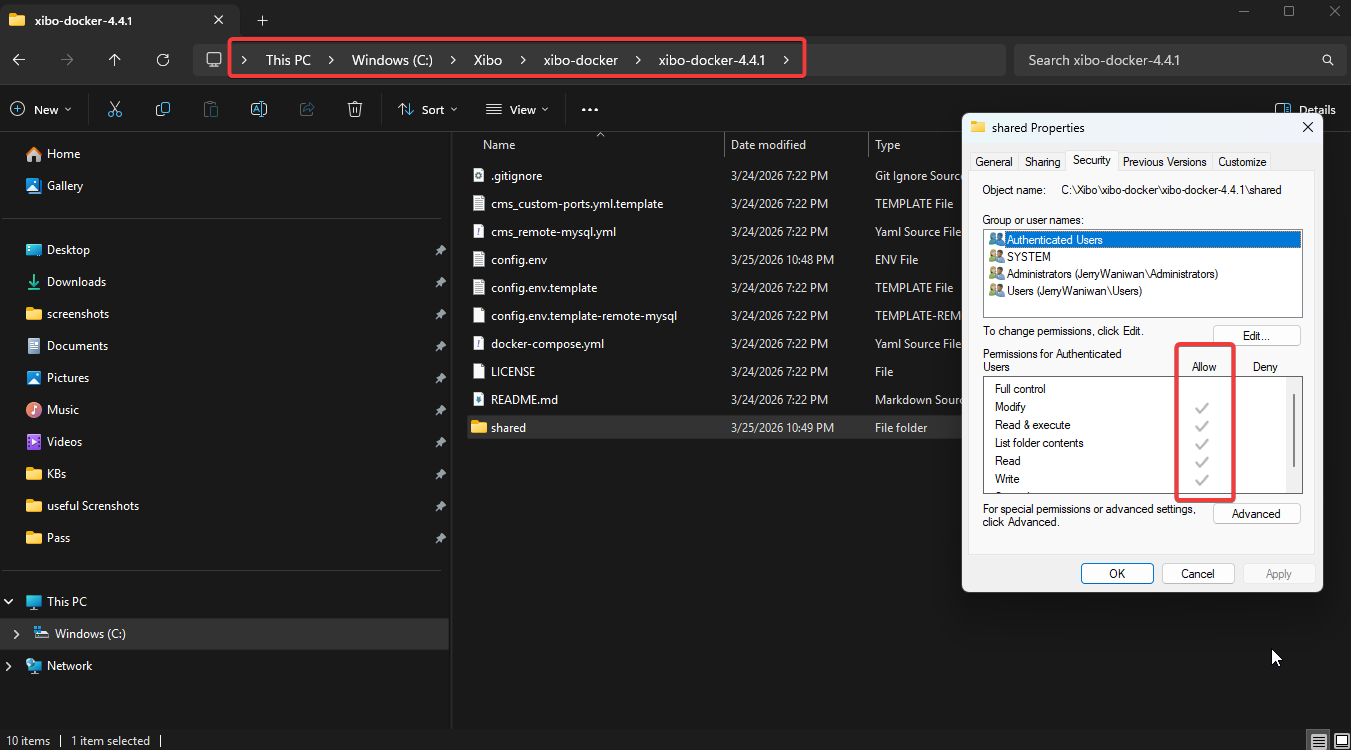
Make sure to close the player and then go to your Xibo installation directory. It is recommended that the installation directory should be in the root of your drive. In my case it is in the root of my C drive. Go inside the Xibo folder and you should see the ‘Shared’ folder. Please create a backup first for the ‘Shared’ folder. Could you check if this folder has all permissions? (especially the read and write permissions). To make sure, turn the permissions off and then save it. Go back again and turn on all the permissions and save it. Inside the shared folder, you would see the backup, cms, and db. Could you please make sure that all those 3 folders have full read and write permissions on them?
Go to the player’s local library; normally the path is found in the Xibo player options, under the ‘General’ tab. Make sure that the folder has full permissions in it. To make sure, you can edit the permission and just like in step 2, turn off all the permissions, save it, then go back again and turn it back on, and then save it.
Try to go to the CMS Library page and upload a simple image. Then, on the Xibo installation directory, go inside the shared > cms > library folder and check if you are seeing the image you have uploaded in CMS earlier. If you do, then proceed below.
Reconfigure your XMR, go to the CMS, Displays, click the row menu for the test display, click on ‘Edit,’ and then click on the ‘Advanced’ tab. Tick the ‘Reconfigure XMR’ option, then save it.
Launch the Xibo for Windows player and check if your default layout is showing.
Another way to isolate this issue is if you have another test PC, you can completely install the Xibo CMS and then see if it does work when installed fresh (test the fresh CMS installation first); then copy your shared folder, which you have backed up earlier, and overwrite the one in your fresh CMS installation directory. If the problem persists after you’ve overwritten the shared folder with the one from your backup, then we know there could be something corrupted in that backup copy. Please note that the CMS V4.4.1 has already been released, you may try it for your fresh CMS installation.
I apologize, but I couldn’t replicate the issue on my end; however, I am suspecting that this is a permissions issue.
I am eager to hear from you regarding the results of your testing.
Kind regards,
Jerry
Hi Jerry,
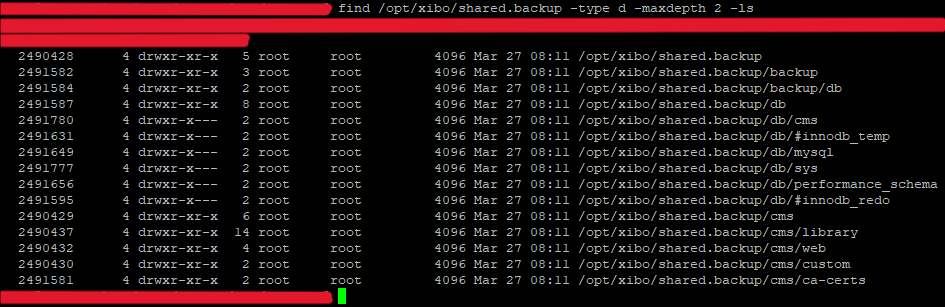
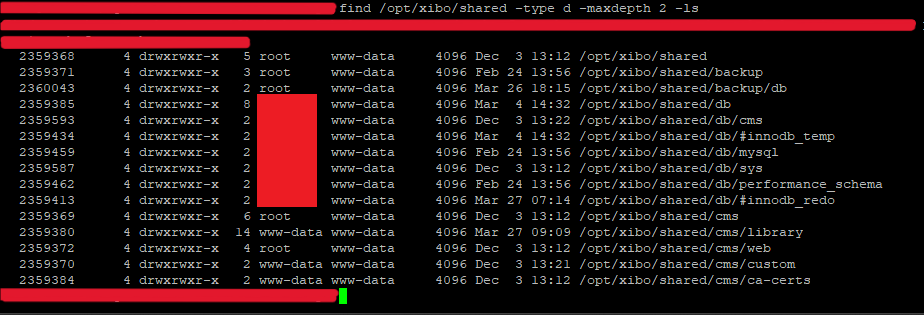
The Xibo CMS installation directory was created on an Ubuntu server under /opt. I updated the permissions so that www-data now has rwx access to the shared directory and all of its subdirectories. Previously, only root had rwx permissions, and all other users had only rx.
Xibo Installation Directory Permissions Before:
Xibo Installation Directory Permissions After:
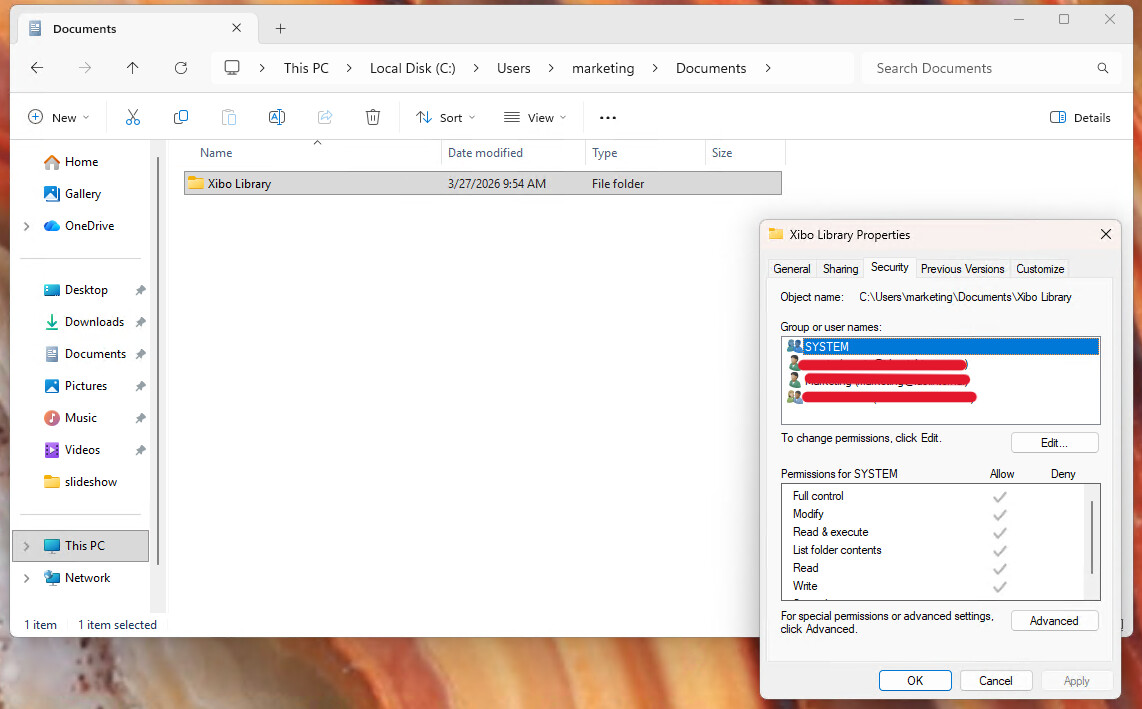
Also, I verified that C295’s Xibo for Windows (XfW) local library had the correct permissions set.
I uploaded a simple image and verified it was present in the /opt/xibo/shared/cms/library directory. I then reconfigured XMR, launched the XfW Player, and waited. Unfortunately, the issue still persists. I will continue testing and isolating the issue by confirming whether it persists on another computer after copying the shared directory over.
I should get back to you shortly with results.
Thanks,
Hannah
Hi Jerry,
I rebuilt everything as you asked, and it’s still not working, even after a fresh install on a new PC.
I followed these instructions exactly but used a different certificate: https://community.xibo.org.uk/t/xibo-cms-with-docker-on-ubuntu-22-04/9392
To be clear, I am experiencing the same issue: Displays are unable to download any dependencies. I can upload media and verify it’s been added to the opt/xibo/shared/cms/library folder, but it’s as if the CMS server cannot “talk” to the Displays and instruct them to download the new media and required dependencies. I’m creating an environment where I can test this outside the protection of our firewall, and antimalware and I will get back to you.
Thanks,
Hannah
Hi Hannah,
Thanks for the update! When you create a fresh environment for your CMS and for testing purposes, could you please make sure that the TCP ports below are available for the CMS to use? If it has a firewall setup or any networking filtering system, please whitelist the TCP ports.
TCP/80 or TCP/443 — HTTP or HTTPS connection
TCP/9505 — XMR communication.
I’m eager to know the results of your testing in a newly created environment for the CMS.
Kind regards,
Jerry
Hi Jerry,
Good news!
I’ve identified the root cause and resolved the issue. On the original CMS, both HTTP and HTTPS were initially enabled. At some point, HTTP was unknowingly disabled under the assumption that it was no longer in use. A few weeks later, when we attempted to update the videos on the Displays, they were unable to download the new content, including the bundle.min.js file. Removing the Displays from the environment made the issue worse, as they could no longer download any dependencies at all.
On the new CMS server, HTTP was originally enabled and then disabled in favor of HTTPS. Specifically, the default Apache configuration file (000-default.conf) under /etc/apache2/sites-enabled/, which allows HTTP communication, was disabled using a2dissite. A separate SSL configuration (default-ssl.conf) was then created to handle secure communication. Because we assumed HTTPS alone was sufficient, HTTP was fully disabled, which ultimately caused the dependency and content download failures. Having both HTTP and HTTPS enabled ultimately resolved the issue.
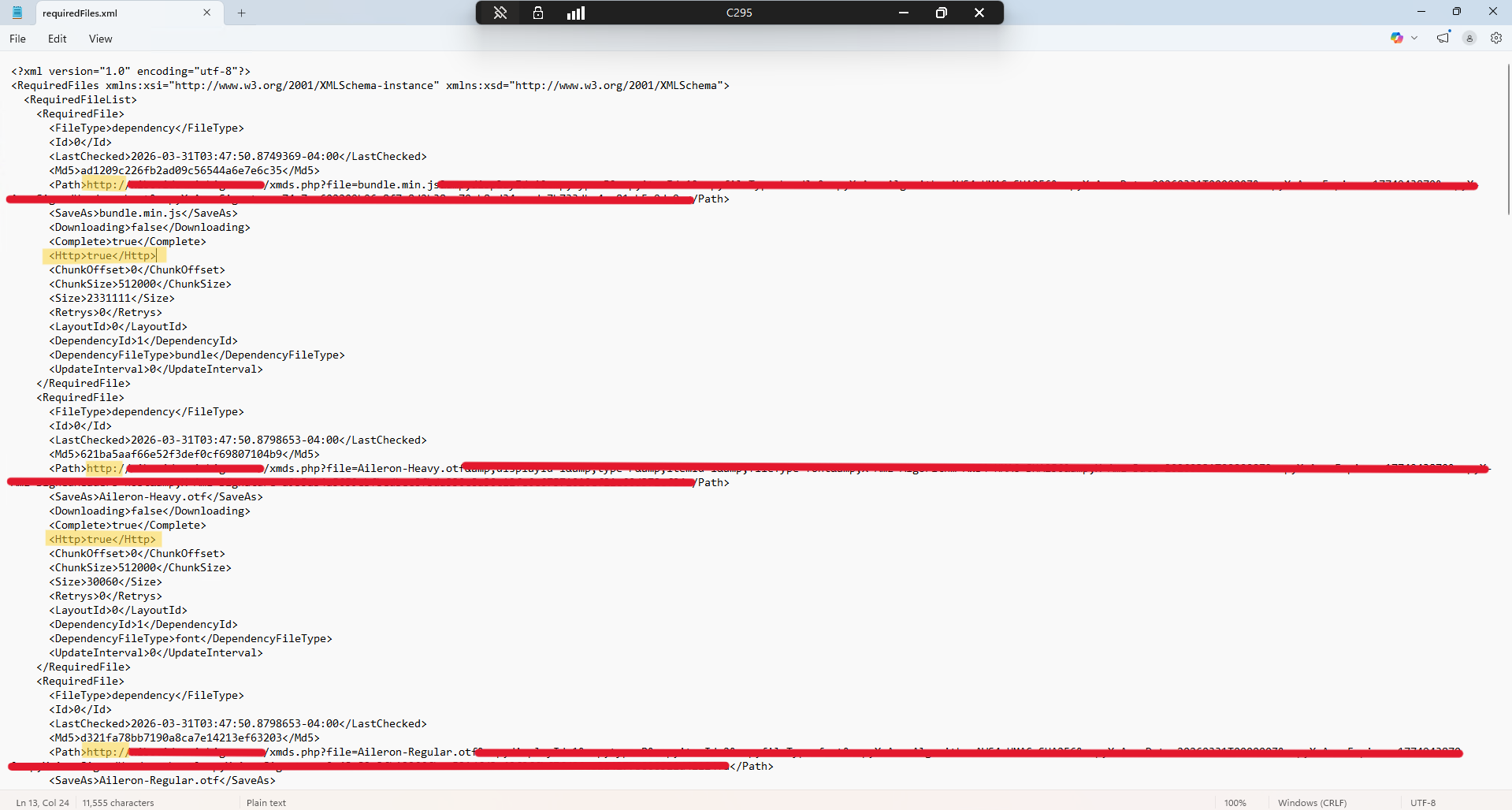
In summary, the CMS was attempting to deliver dependencies and content over HTTP. Because HTTP had been disabled, the CMS was effectively unreachable from the player’s perspective and could not fulfill those requests. What’s interesting is that when the XfW Player was initially configured, we provided the correct CMS address using HTTPS and were able to connect successfully. This suggests the initial registration process supports HTTPS, but the requiredFiles.json appears to explicitly reference file downloads over HTTP only, rather than supporting both HTTP and HTTPS. As a result, disabling HTTP prevented the player from retrieving its required dependencies and content.
So, in our case it wasn’t TCP/80 or TCP/443 it was TCP/80 and TCP/443.
Thank you so much for your help! It means a lot!
Hannah