Hi hbeck,
Thank you for the logs you have provided and for confirming that everything works in the Xibo Cloud trial CMS. Based on the errors you were getting per the logs you have attached in your previous message, we will need to attempt to fix all those errors, and I will guide you through it.
Permissions issue (found in CMS, Log page).
The error you are getting in the CMS logs section, specifically the SQLite error 14, is being caused by a permissions issue on the location where you have set your local library for Xibo for Windows (XfW) player. To fix this, please make sure that the local library folder has read and write permissions set to it so that the player can have access to it and store the downloaded dependencies from CMS. What is happening is that, due to a permissions issue on that folder where you have set it to be the local library, when the player tries to download the file from CMS, it can’t read and write to that folder, hence the error. Please check this related post here.
To set Windows permissions on a folder, you can follow the guide below.
Windows Permissions (Local)
-
Open Properties: Right-click the target folder and select Properties.
-
Security Tab: Go to the Security tab.
-
Edit Access: Click Edit to modify permissions.
-
Add User: Click Add and enter the user name, or select “Everyone” to grant access to all users.
-
Set Permissions: Select the user, then check Allow for Modify or Full Control.
-
Apply: Click Apply and OK.
Here is an example of my Xibo local library that has full read and write permissions.
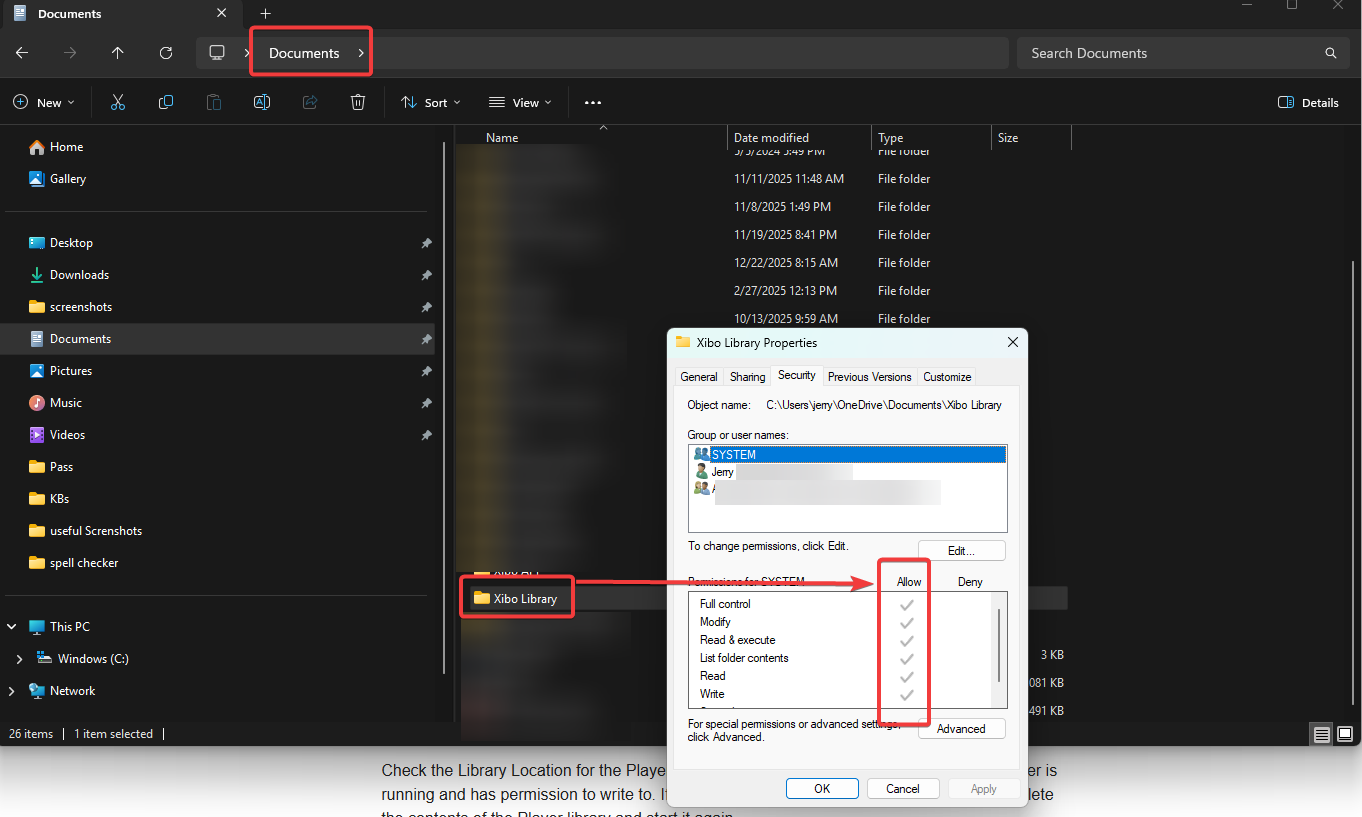
After making sure that the local library has full read and write permissions, please make sure to close your XfW player and then delete all of the contents inside that folder.
Invalid layout issue (found in player status log).
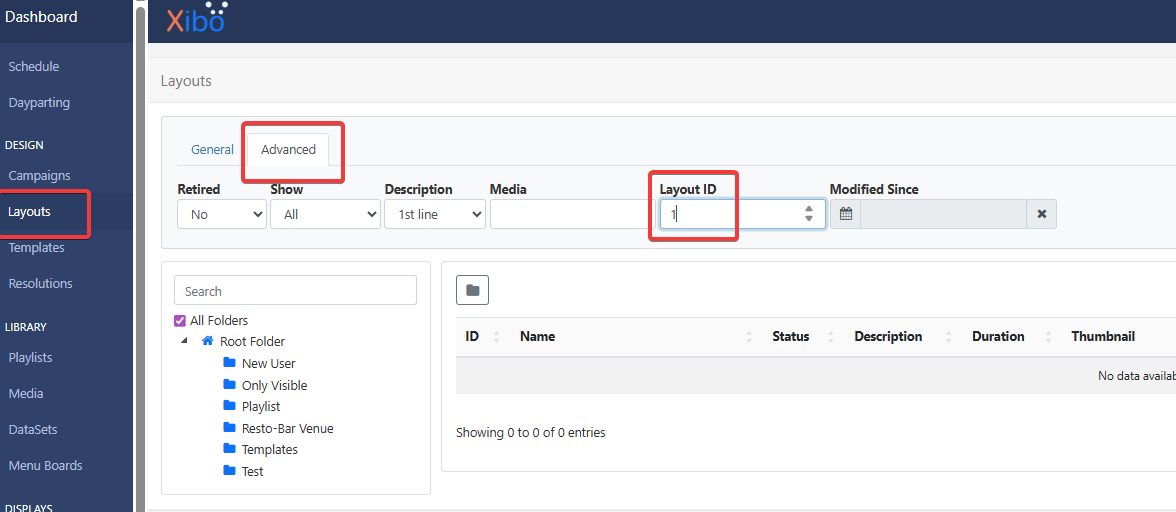
Please check the layout with Layout ID 1, as it is being reported as invalid. To isolate this, make sure that you have deleted all scheduled events for your test display C294. To do so, go to the Schedule section in your CMS, then filter your display. If there are any schedules showing for that display, please click the row menu for that schedule entry and click on “delete.” Now that we are sure there are no schedules for this display, check if the default layout set for this display is the layout with Layout ID 1. You can do so by going to the Layouts section in CMS, going to the advanced tab, and typing in 1 in the Layout ID field. When you have confirmed that the default layout you set in your display is the one being reported as the invalid layout, could you please download this default layout here and import it to your CMS, then set it to your test display as the default layout? To set it, go to your CMS, Displays section, click the row menu for the C294 display, and click on ‘Default Layout’ then select the ‘Default Layout - Xibo’ which you have imported to your CMS earlier.
XMR issue (found in the player status logs).
The XMR service in CMS is responsible for having the player check updates in CMS. If this is not working, then there would be a problem between the communication of the player and the CMS. To fix this, please go to the CMS, Display section, click the row menu for the C294 display, and click on “Edit.” Go to the advanced tab and tick the option ‘Reconfigure XMR?’ and save it. When you relaunch your XfW player, it will connect to your CMS and complete reconfiguring XMR automatically.
After making sure that all the above steps are completed, launch your XfW player and check if you are still getting the same issue.
Hope to hear from you soon!
Kind regards,
Jerry