To be completed by the original poster:
CMS Version
4.4.1
Installation Method
Custom install
Operating System
Windows Server 2019 Standard.
Using Laragon (apache, PHP 8.5, MariaDB)
Issue
Issue was on version 4.4.0 and version 4.4.1.
And the issue was - when I go to “Layouts”, my layouts were missing in GUI although I can see them directly in my database (using phpmyadmin).
Also, when clicking to create new layout, I would get error message.
Solution
You have to create pub/private RSA keypair and an encryption key.
This is documented here: https://account.xibosignage.com/docs/setup/xibo-on-a-web-server#content-after-installation
Once created, you have to place all three of them to C:\XiboLibrary\certs on your server.
Since I’m using Laragon on my Windows Server, I will show you how to do it using this system, but it is pretty much the same on other systems, as long as you have terminal or console access.
-
Open Terminal in Laragon
-
Place yourself in folder C:\XiboLibrary\certs
-
Create private and public keys:
openssl genrsa -out private.key 2048openssl rsa -in private.key -pubout -out public.key
-
Create encryption key:
php -r ‘echo base64_encode(random_bytes(32)), PHP_EOL;’ >> encryption.key -
Restart Apache server
At the end, you should have it like this:
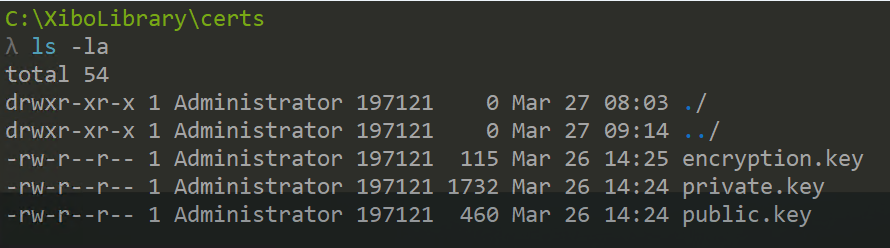
This method worked for me and I now have all my layouts displayed in “Layouts”.