Layout invalid after no change for a while

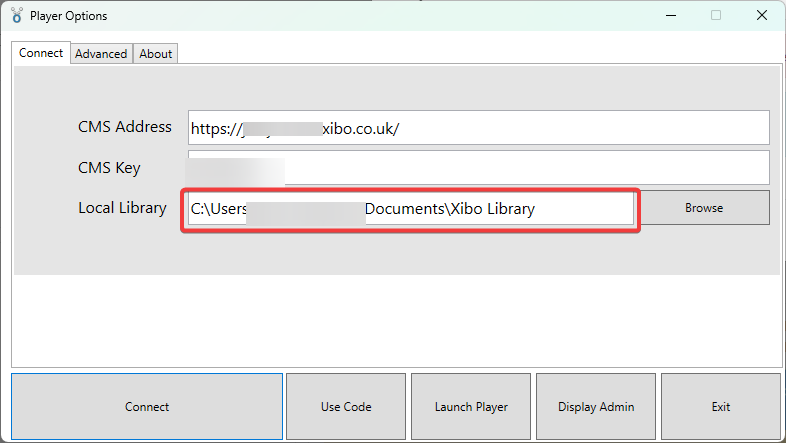
Player version: windows 4 R404.1-404

Hi all, have anyone experience when you have not done any changes on a layout for awhile, it will become invalid. When u checkout and publish it again, it will work. I’ve been experiencing this for awhile now, just want to check it others experience it before.

“Invalid” doesn’t show on the layout “valid column” but stated on the player logs as per screenshot.

It shows layout ID 25871 which is not listed in my layout and not schedule as invalid. Layout that is use is 24289 and 22594, and if i checkout and publish 22594 again, everything it works. I know its confusing but if anyone has any idea or suggestion is appreciated, thank you! :slight_smile:

Hi Akram,

Thank you for reaching out to Xibo Community!

Sorry to hear about the issue. It might be a player issue if the layout is not showing as invalid in CMS but the player looks at it to be invalid. To isolate the issue, I would start with installing the most recent Xibo for Windows (XfW) V4 R405, you can download the installer from here. Once installed try to observe if you still get the same issue.

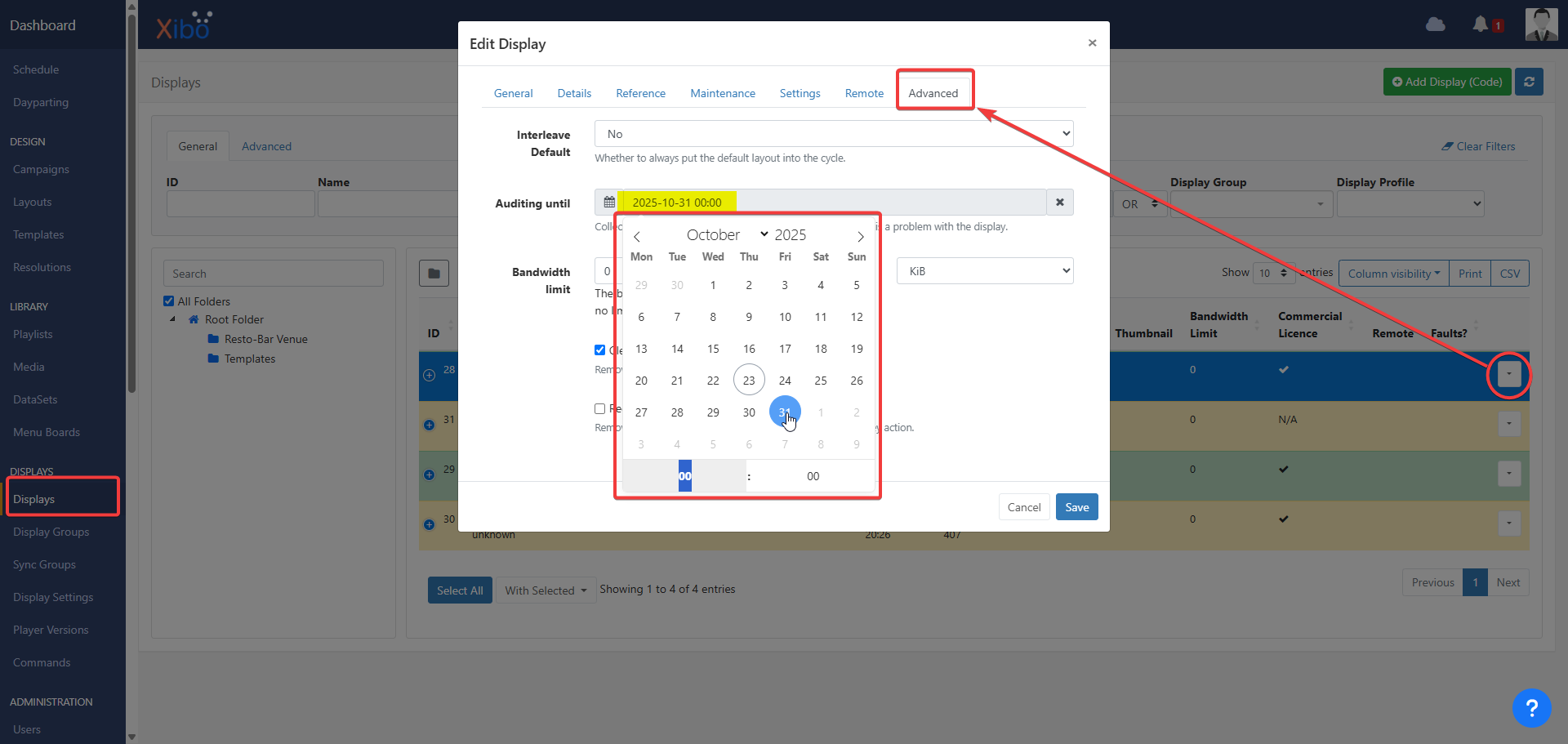
Also, when you said that the invalid layout is not scheduled but is still being seen by the XfW player, it might be cached somewhere in your player library that is why the player still sees it. You can purge the display in order to clear out all the files in the player library so that the player re-downloads fresh copies of the layout. To do so, go to CMS > Displays, click on the row menu of the display, click on Edit, then click on ‘Purge All’.

Alternatively, if the above did not work, you can manually go to your Xibo player library and delete everything inside that folder. When you close and relaunch the player, it will force it to check all the needed files it needs to download based on what is scheduled on that display. It will obtain fresh new copies of those files.

Please let me know if the above recommendations worked for you.

Kind regards,
Jerry

Hello Jerry, thank you for your prompt reply and your suggestions above. I have actually tried this all this, it does work, but after after awhile it comes back again. I’ve actually faced, this issue since version 3, and with every version upgrade I hope it will solve the issue, but it doesn’t which is why I’m asking for suggestion here as I have run out of ideas. Just checking if anyone else have experience this issue :slight_smile:

Hi Akram,

Thank you for reporting this issue. I do have a couple of questions to clarify the symptoms of this issue.

Does this mean that the layout is still exsting and can be seen in the CMS > Layout section? Also, that layout shows as valid?

This seems to contradict if the layout can still be seen in the CMS > Layout section, is the layout somehow retired? Are you only able to view layout if you filtered your search and set the ‘Retired’ option to ‘Yes’?

Does this issue happen even in the newest XfW V4 R405?

I couldn’t replicate this issue on my test CMS with the latest CMS and XfW player. If you have an estimated timeframe on when the issue occurs, I would highly recommend that you enable ‘Audit Logging’ in your CMS so that all logs are captured as the issue happens again. This will help us identify what is causing this issue and relay it to our development team for further investigation. If you can’t remember or don’t have an estimated timeframe when the issue occurs, you could try to set a test player instead and enable ‘Audit Logging’ maybe for a month to capture the issue via logs.

To enable ‘Audit Logging’ in your test display, please go to CMS > Displays section. Click on the test display entry’s row menu, click on ‘Edit’ then go to the ‘Advanced’ tab. Please set the dates for up to when you’d like the CMS to collect all logs. If you can share those logs to us as soon as the issue happens again; that would give us an idea what is happening at the back in CMS and the player as to why the issue occurs.

Kind regards,
Jerry

Hi Jerry,

The layout that was schedule is 24289 and 22594 which can be seen in Layout section. However the player logs is showing 25871 that is invalid, which is not schedule and not in the layout section, I am not sure how the player logs get that ID from. To resolve this i just need to go to layout 22594, checkout and republish it again, then everything works fine again.

This happen in other layouts and display too, it happens intermittently, which until now i couldn’t figure out why.

I will activate the auditing if I experience the issue again and will provide you the logs soon.

Regards,Akram

1 Like

Hi Akram,

Thank you for your response!

That would be a great idea to capture all the logs from CMS and players by enabling the ‘Audit Logging’ so we’ll have a better look on this strange issue. I will look forward to seeing those logs when the issue happens again. Thank you for your assistance in narrowing this issue.

Kind regards,
Jerry

1 Like

Hi Akram,

Just to make sure, when you were looking for the Layout ID 25871, You see this ID in the Layout ID column in CMS > Layout section, correct? The reason I asked is because there are 2 IDs in the Layout section and by default, the Layout ID is not shown. In order to show the Layout ID, you’ll need to click on the ‘Column Visibility’ button at the top right of the Layout secion.

In this example the Layout ID is 289.

Also, just to be sure that the Layout ID 25871 is not showing in the layout section, have you tried to filter if that layout is somehow set to retire? If you go to the ‘Advanced’ tab in the ‘Layouts’ section in CMS, then set the option to ‘Yes’ and fill in the ‘Layout ID’ with 25871 does that layout show or still does not show?

Since there are XMR errors on the player logs on your previos screenshot, you might as well fix the XMR issues. That way, we can clear the XMR errors and the logs for the actual issue would stand out. Here is how you can reconfigure you XMR. Go to CMS > Displays then click the row menu of the player showing those XMR errors. Click on 'Edit, then go to the ‘Advanced’ tab. Please tick the option ‘Reconfigure XMR’ and click on ‘Save’. Finally, restart your XfW player.

If you are 100% sure that the layout ID 25871 no longer exist in your CMS, It is also possible that the layout is the old version of either the 2 layouts 24289 and 22594 where that old version might still be sitting somewhere in your player library. When you do any changes on the layout, the Layout ID will change, which might be the reason why you are no longer seeing that layout in your CMS. Could you please try to recreate your scheduled layout 24289 and 22594 and see if at some point in the future it will still report that the layout ID 25871 is still being reported as invalid by the player?

SInce you already have enabled ‘Audit Logging’ on the display that reports the invalid layout, performing the above recommendations might help greatly in further narrowing the issue.

I will Direct Message you to request a copy of the layout just to double check and test it on my end with your permission. If you would agree to provide it, please respond back to me on my Direct Message with the exported copy of the layouts you’ve scheduled (layouts 24289 and 22594).

Hope to hear from you soon.

Kind regards,
Jerry

Hi Jerry,

Yes, I’m referring to the correct layout ID which I manually click to show in the column and I have tried filtering “retired” in the advance tab too.

Thanks for the XMR tips, I will do that. And I think you are right regarding the change in the Layout ID, because I did notice this too at some point. And do you think running the “Drop player cache” task will help in this case?

Thank you, for your suggestion, I really appreciate this. Will get back to you on the audit logs. You have a great weekend ahead sir!

Regards, Akram

1 Like

Hello @JerryW , its me again. Just a question, where is the audit logging files save at when we do this from the display?

Hi Akram,

To get the CMS logs, go to CMS > Log section. Set the duration back to something like 12000 to show the all the logs. You can set how many entries either by 10, 50 or 100 then click on the ‘CSV’ to export all the logs to a CSV file.

You can filter out your test display by going to the ‘Advanced’ tab and fill in the ‘Display’ fiels with the name of your display.

Kind regards,
Jerry

Ahh okay, I did it correctly, so far i saw no difference in the audit logs and the player logs. But i will keep monitoring this issue. Thanks again!

1 Like

This topic was automatically closed 91 days after the last reply. New replies are no longer allowed.