Hello, I am contacting you here because I would like to use Xibo 4.3.0 to display images on screens in public places.
It allows me to manage remotely via a Docker installation on a Synology DS923+ NAS.
What I want to do but can’t manage:
- Change the image display delay
- Add as many areas as I want to a layout manually.
- Smooth the transition between images.
- Add widgets such as OpenWeather to display the weather.
Another issue:
I would like to broadcast audio announcements in the background without affecting the display of existing image campaigns. The audio announcements could be “There are 10 minutes left, the doors will close soon” or “This is not a place to stay, please leave.”
I would like this to happen in the background, so that I just have to send it to the display and it will be broadcast within 10 seconds.
There’s certainly a lot to unpack in your post, so I will respond to each point in order:
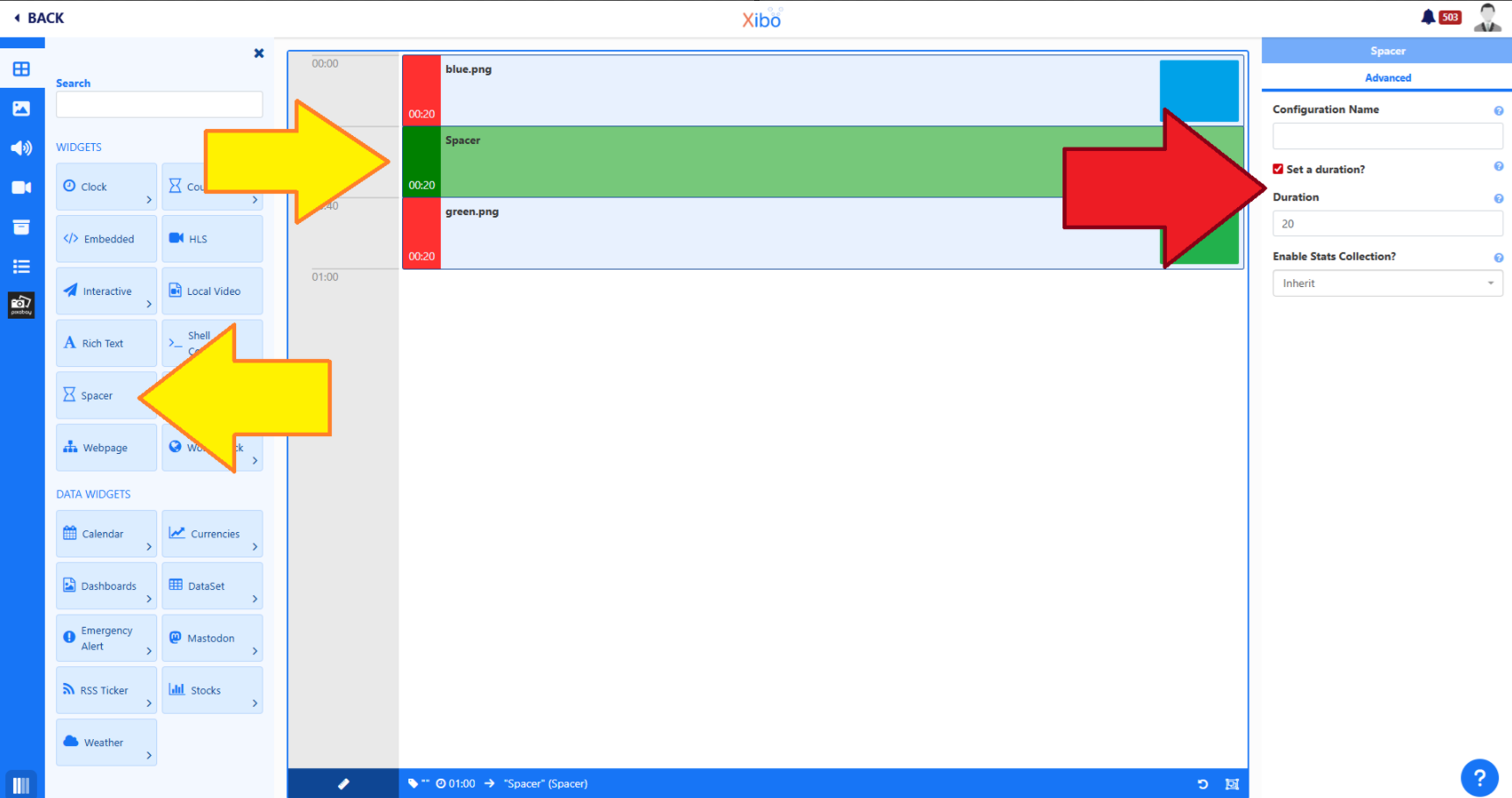
This is could be interpreted in a few ways, forgive me if I have misunderstood. If you add a playlist to your layout, you can add a widget called a Spacer to your timeline, which acts as a delay. While the spacer is running for its duration, you will see nothing appear in the playlist.
For example, let’s say I want to show an image for 20 seconds, then have a delay of 20 seconds, then show another image for 20 seconds.
In the screenshot underneath this message, you can see in the timeline of my playlist I have added an image to the playlist, then the Spacer widget (The yellow arrows point to where you can find the Spacer widget on the left and where it is in my playlist timeline after I added it), then my final image. When this playlist runs on my display, it will show the first image for 20 seconds, then the spacer widget, which is just a delay, for 20 seconds, then the final image for 20 seconds.
You can add as many items to your layout as you want, including playlists, which you can then add media to. Is this what you are trying to achieve?
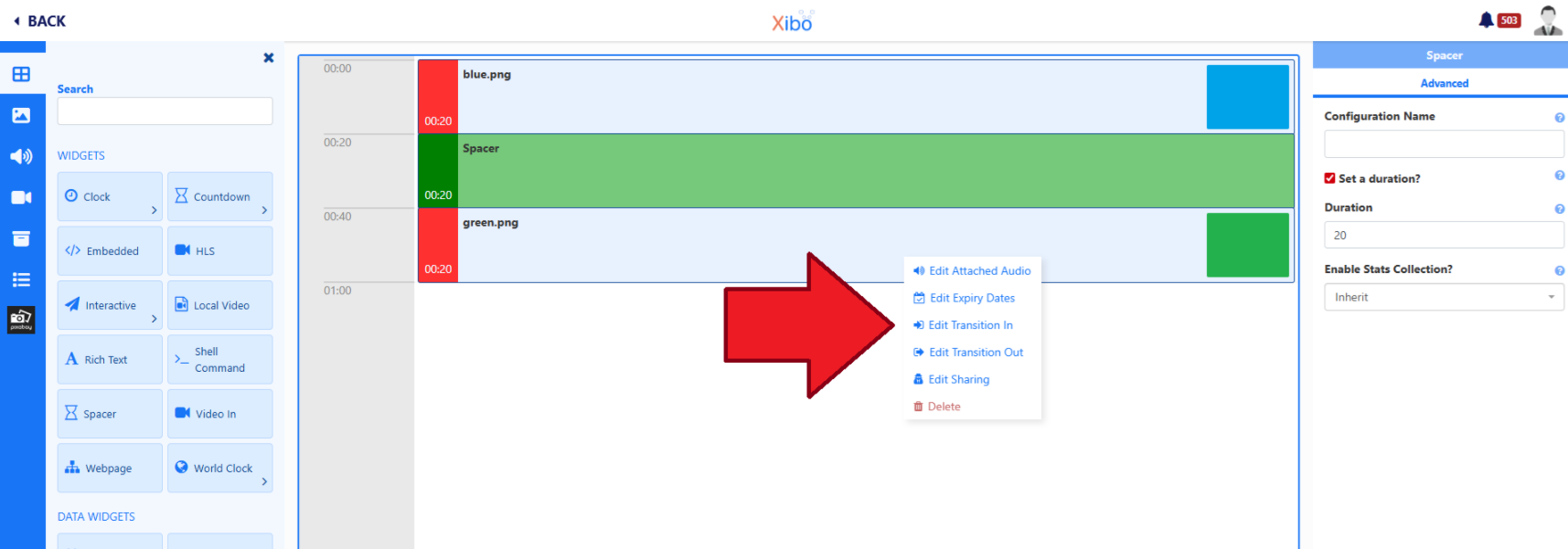
When you add items to a playlist, you can right click on them to reveal a small menu that lets you set in and out transitions. You can see it in the next screenshot, highlighted with a red arrow:
You will need to follow the instructions in the Xibo Openweather Documentation, which you can find here. Please read the information carefully, as you need to have the correct Openweather API key to use with the Openweather application and module in the Xibo CMS.
If you are using Xibo in the cloud, you don’t need to do that, you can just start using Openweather as we manage the API subscription for Xibo in the cloud users.
This is definitely possible, there are some things you’ll need to know to get this set up.
If you want to play an audio clip without interrupting your currently scheduled events, the best way to do that is to create a layout that only contains that audio clip. Then you can scheduled that as an overlay event type. This will overlay the audio layout over any layouts currently playing.
if you want that to be broadcast very quickly, within 10 seconds, you will need to use the XMR service to push that overlay event to the display immediately. To avoid any delays downloading the audio clip before it is due to play, you will need to assign the audio to the display beforehand, so it always has a copy saved locally, ready to be used.
XMR is an optional push messaging service that you will need to set up on your self hosted CMS and ensure the port used (TCP Port 9505) is open and that it is configured and working. Please see the appropriate CMS installation guide for your setup to find out how to configure XMR.
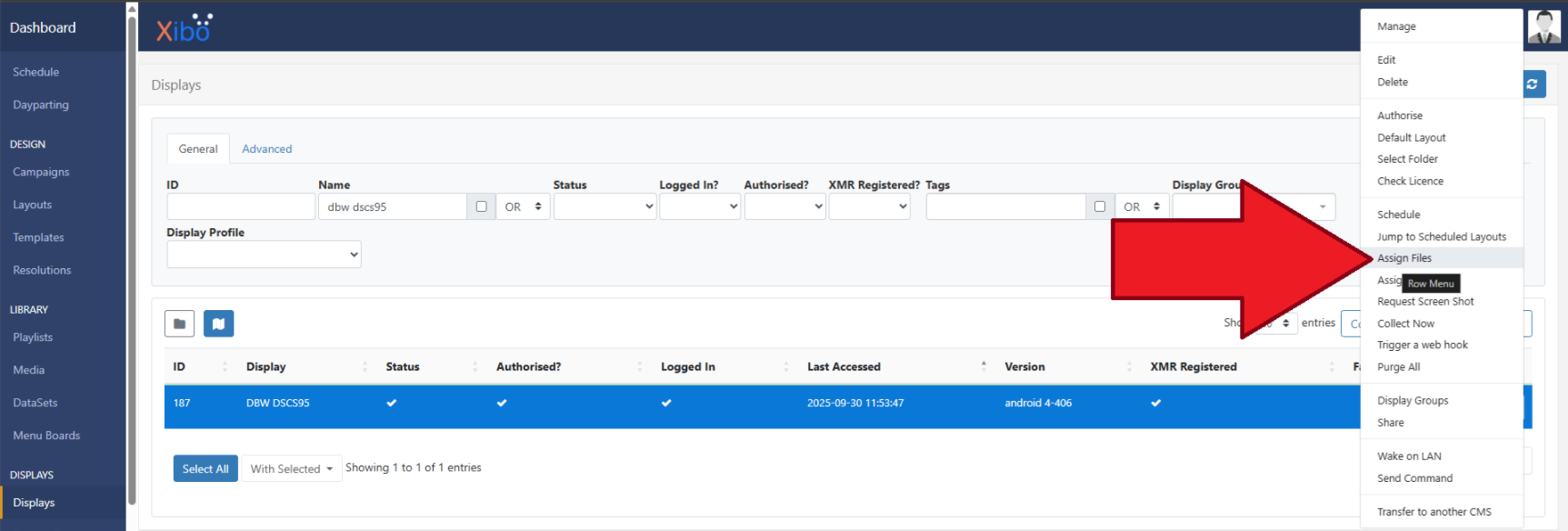
Assigning a media item is not the same as scheduling it. You need to go to the Displays page in your CMS, click the button at the end of the entry for your display and choose Assign Files from the menu. You can see the option in the next screenshot:
Once you assign the audio file, the player will download it when it next connects to your CMS. now it will always be immediately available for use, it won’t need to be downloaded from your CMS, which could cause a delay when your audio layout is due to play when scheduled as an overlay.
I think that’s everything you asked about, but if I’ve misunderstood any of the requests please do let me know.
On a side note, I would recommend taking a look at the Xibo training videos on the Xibo Youtube channel, which you can find here.
I can also see 0x0 has shared a link to manual, thanks @0x0 !