Please note that this also works for white label versions of the Windows player, and also when installing a second player for a multi player installation on a single PC.
Context
Some users may encounter an issue where the installation of the Windows player ends prematurely. In the event this occurs, please can you use this method as a workaround.
Installing the Windows player using msiexec
- Download Xibo for Windows player, or your white label MSI file, onto your PC that will act as your display device.
- Right click on the MSI file and choose “Copy as Path”. Save this file path somewhere where you can refer to it shortly.
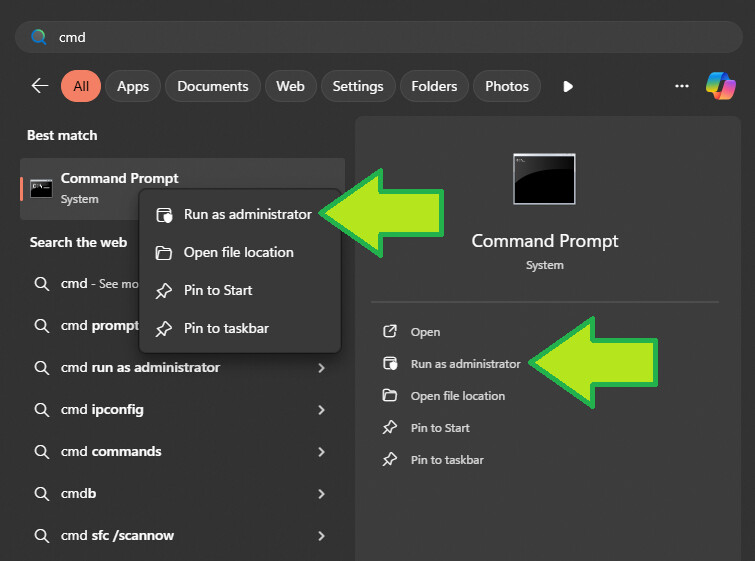
- Press the Windows key on your keyboard and search for CMD. Run it as Administrator. You can see you can either choose the “Run as Administrator” option on the right, or you can right click on the command prompt entry and choose it from there:
- Now that you have an admin command prompt open, use the msiexec command to run the MSI installer. The format of that command is:
msiexec /i “C:\MyPackage\Example.msi”
We will need to use that full file location for the MSI that you noted in step 1 to replace the C:\MyPackage\Example.msi in the above command. For example, if I downloaded the Xibo player MSI to the downloads folder and followed the above steps, the final command would look like this:

You should find that following these steps will successfully install the Windows player.