# How do I upload files bigger than 2MB / How can I increase the upload file size limit?
**URL:** https://community.xibo.org.uk/t/how-do-i-upload-files-bigger-than-2mb-how-can-i-increase-the-upload-file-size-limit/27
**Category:** FAQ's
**Created:** [March 10, 2015, 4:22pm UTC](https://community.xibo.org.uk/t/how-do-i-upload-files-bigger-than-2mb-how-can-i-increase-the-upload-file-size-limit/27 "2015-03-10T16:22:44Z")
**Posts on this page:** 2
**Page:** 1
### Author:  [@alex](https://community.xibo.org.uk/u/alex)
#### Post date: [March 10, 2015, 4:22pm UTC](https://community.xibo.org.uk/t/how-do-i-upload-files-bigger-than-2mb-how-can-i-increase-the-upload-file-size-limit/27/1 "2015-03-10T16:22:44Z")
Other symptoms include an error when uploading files:
`SyntaxError: JSON.parse: unexpected character at line 1 column 1 of the JSON data`
or simply the message
`true`
Xibo does not limit file upload size - but PHP does. You need to edit your php.ini file for your system to support large file uploads.
By default, the php.ini file is in the following locations:
Ubuntu (with Apache): `/etc/php5/apache2/php.ini`
Ubuntu (with php-fpm - for example with nginx or lighttpd): `/etc/php5/fpm/php.ini`
Windows (with XAMPP): `install_path\xampp\php\php.ini` - eg `c:\xampp\php\php.ini`
Please see this page for instructions on optimising PHP for \>2MB uploads:
[http://www.radinks.com/upload/config.php](http://www.radinks.com/upload/config.php)
You’ll need to change at least:
> upload\_max\_filesize
> post\_max\_size
> memory\_limit
> max\_execution\_time
You many also need to adjust:
> max\_input\_time
Be very careful with the units you choose. For example you might set:
> upload\_max\_filesize=100M
> post\_max\_size=100M
> memory\_limit=120M
> max\_execution\_time=500
See also the PHP core documentation here:
> **[PHP: Description of core php.ini directives - Manual](https://www.php.net/manual/en/ini.core.php)**
>
> Description of core php.ini directives
> **[PHP: Description of core php.ini directives - Manual](https://www.php.net/manual/en/ini.core.php)**
>
> Description of core php.ini directives
> **[PHP: Description of core php.ini directives - Manual](https://www.php.net/manual/en/ini.core.php)**
>
> Description of core php.ini directives
> **[PHP: Runtime Configuration - Manual](https://www.php.net/manual/en/info.configuration.php)**
>
> Runtime Configuration
_**Once you’ve changed the php.ini file, you must restart your webserver (ie Apache) service before the changes will be picked up.**_ If you’re using fastcgi/php-fpm to run PHP as a separate process then you’ll need to restart that rather than your web server.
### Notes for IIS users:
IIS may also limit the file sizing for upload. This can be checked/changed in the “Request Filtering” section of IIS Manager.
The following documentation may be helpful to you:
[http://ajaxuploader.com/large-file-upload-iis-asp-net.htm](http://ajaxuploader.com/large-file-upload-iis-asp-net.htm)
### Notes for nginx users:
nginx also limits the maximum upload filesize in the
> client\_max\_body\_size
> client\_body\_timeout
variables in the nginx configuration file. See the nginx manual for details,
> **[Module ngx\_http\_core\_module](http://nginx.org/en/docs/http/ngx_http_core_module.html#client_max_body_size)**
>
> This directive appeared in version 1.11.8.
### Notes for FastCGI users:
It’s also necessary to edit the `MaxRequestLen` and/or `fgcidmaxrequestlen` parameters in your FastCGI configuration. See the follow article for more information. [1st Class Media Blog - Thoughts, Ideas & Shares: Fixing FcgidMaxRequestLen Plesk 11/12 - file upload hell](http://1stclassmedia.blogspot.nl/2015/01/fixing-fcgidmaxrequestlen-plesk-1112.html?m=1)
### For Docker Based CMS Installations:
The PHP settings mentioned above are located in the `config.env` file for your installation.
**Please note:** you will need to stop or down your Docker CMS prior to making the below changes to your config file. You can use either of the following commands to stop or down your Docker CMS:
`docker-compose down`
or
`docker-compose stop`
To modify the file upload size limit, navigate to the directory where you have installed your Docker CMS and edit your `config.env` file. You will see that the last entries relate to the file upload limits:
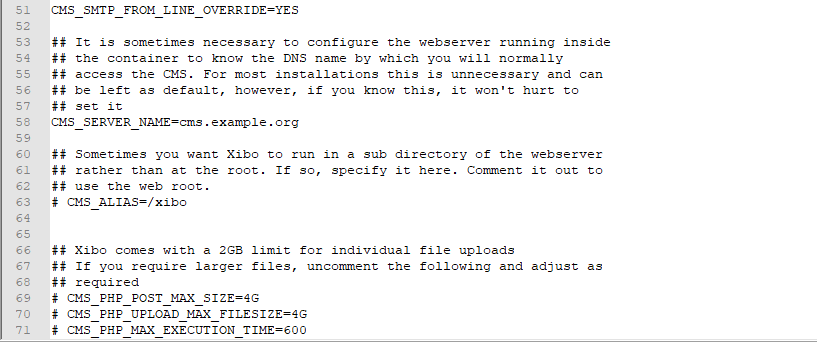
To modify the settings, simply remove the # and spaces before the entries and set the limits best suited for your installation. save the changes to confirm.
Once you have made the changes, you can restart your CMS using the up command if you previously used the down command, or the start command if you previously used the stop command:
`docker-compose up -d`
or
`docker-compose start`
---
### Author:  [@alex](https://community.xibo.org.uk/u/alex)
#### Post date: [March 10, 2015, 4:38pm UTC](https://community.xibo.org.uk/t/how-do-i-upload-files-bigger-than-2mb-how-can-i-increase-the-upload-file-size-limit/27/2 "2015-03-10T16:38:05Z")